

Want your menu to say Register instead of Tickets, or Our Story instead of About? Each link in your site's header menu uses the title of a page, so to change a menu label, you just rename the page.
Package: Basic
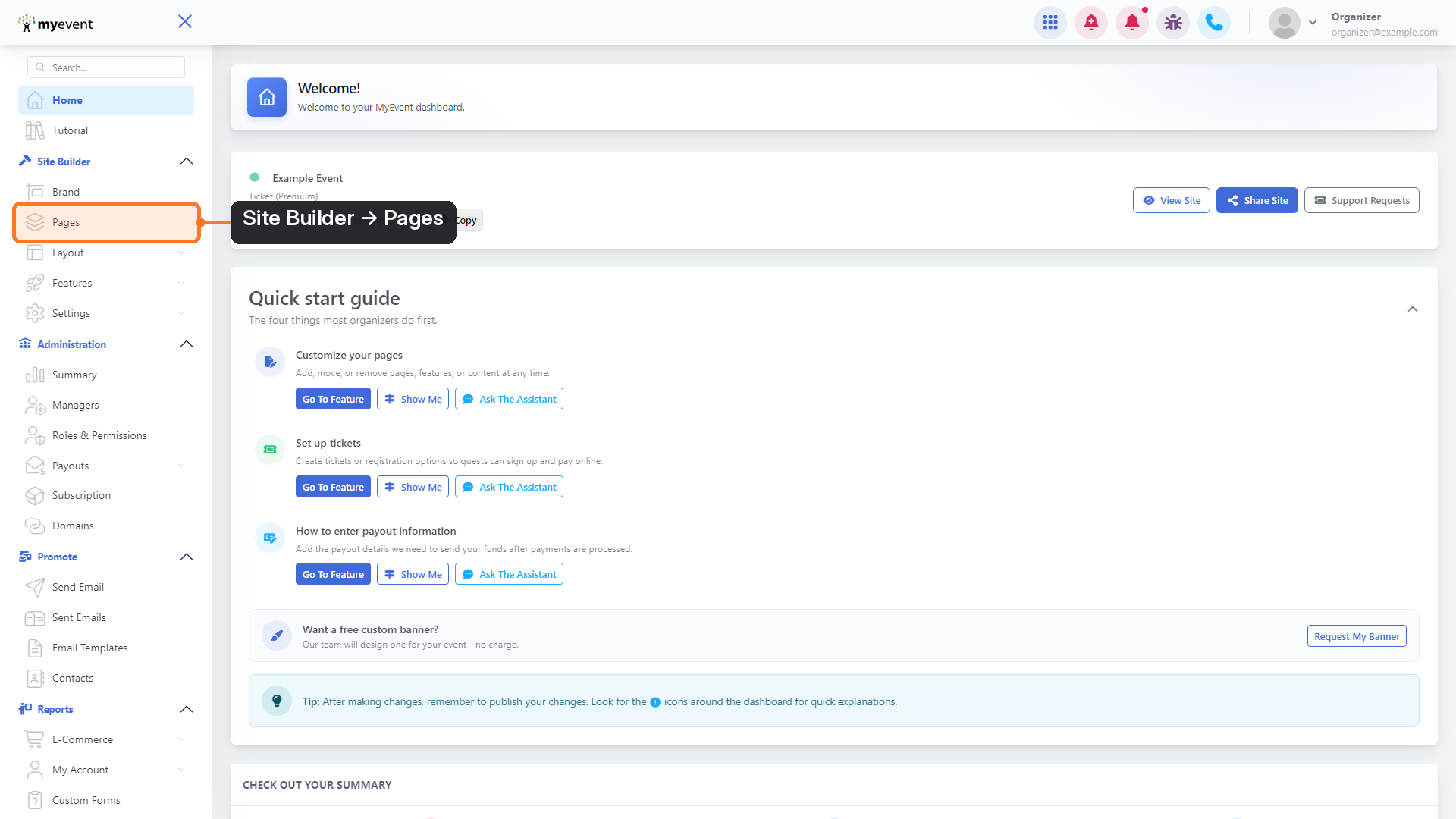
Step 1: Open your pages From your dashboard, go to Site Builder and click Pages.
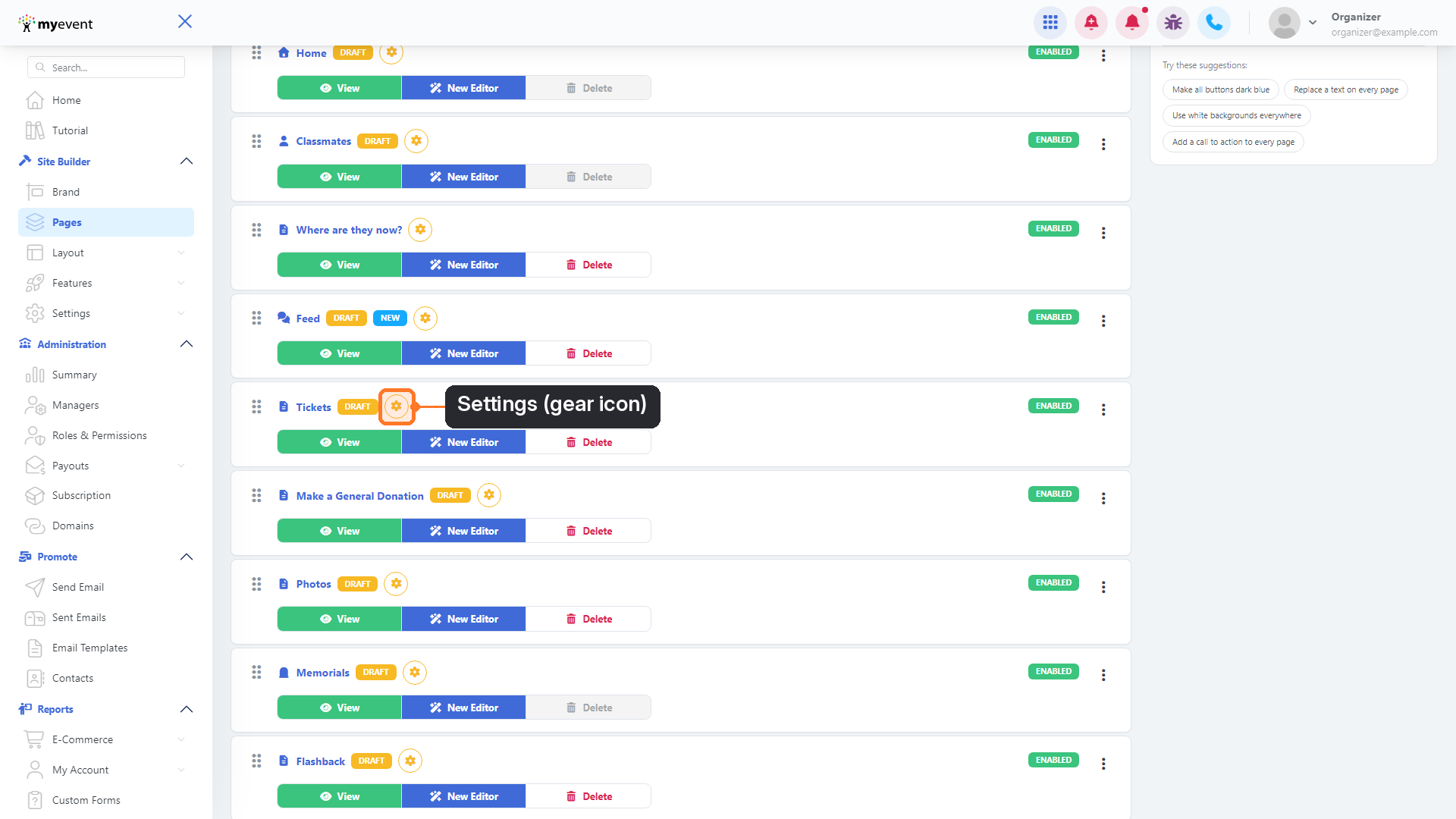
Step 2: Open the page's settings Find the page whose menu label you want to change, then click the yellow gear icon next to its name.
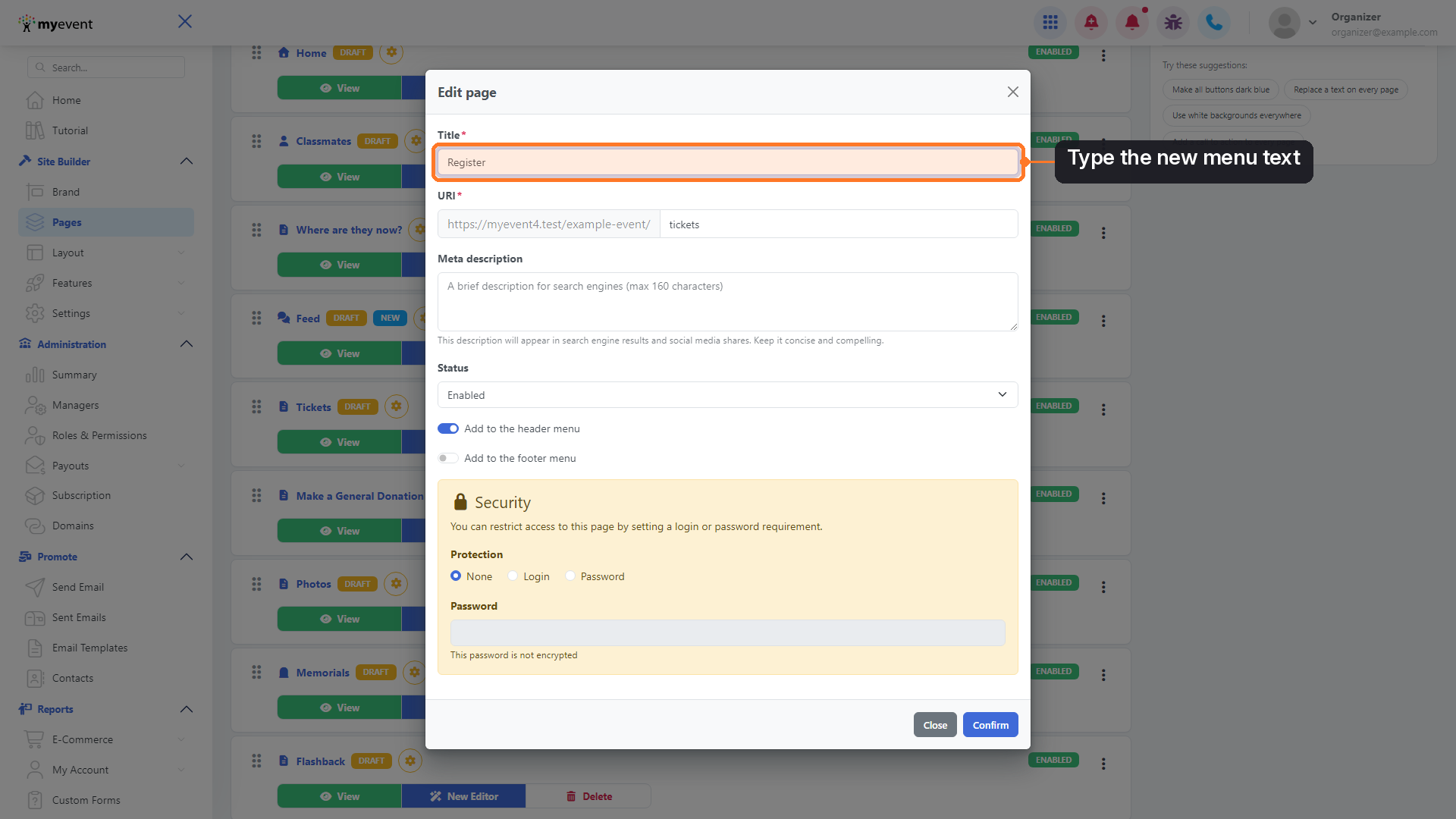
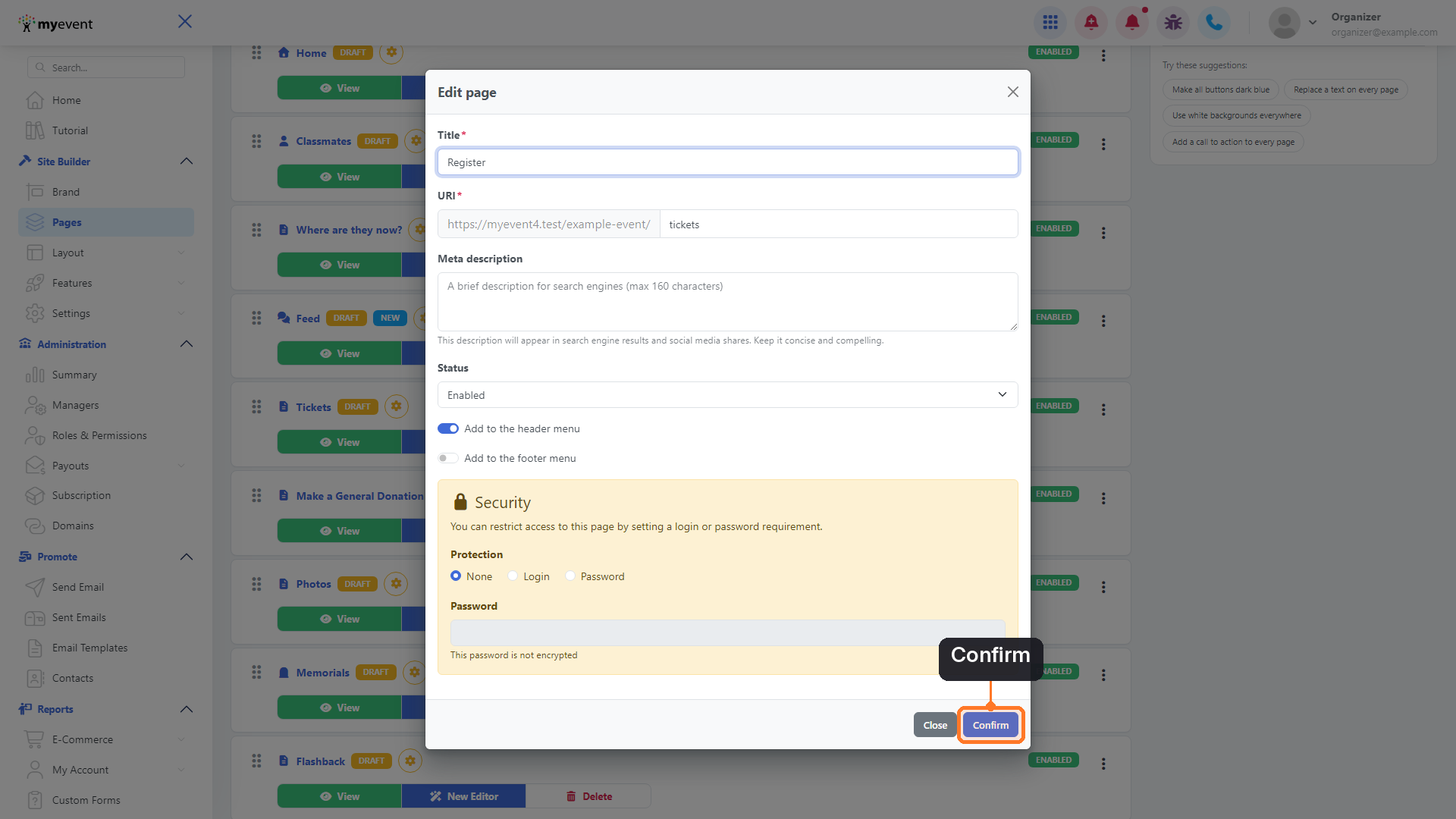
Step 3: Type the new name In the Edit page window, replace the text in the Title field with the label you want in your menu, for example Register.
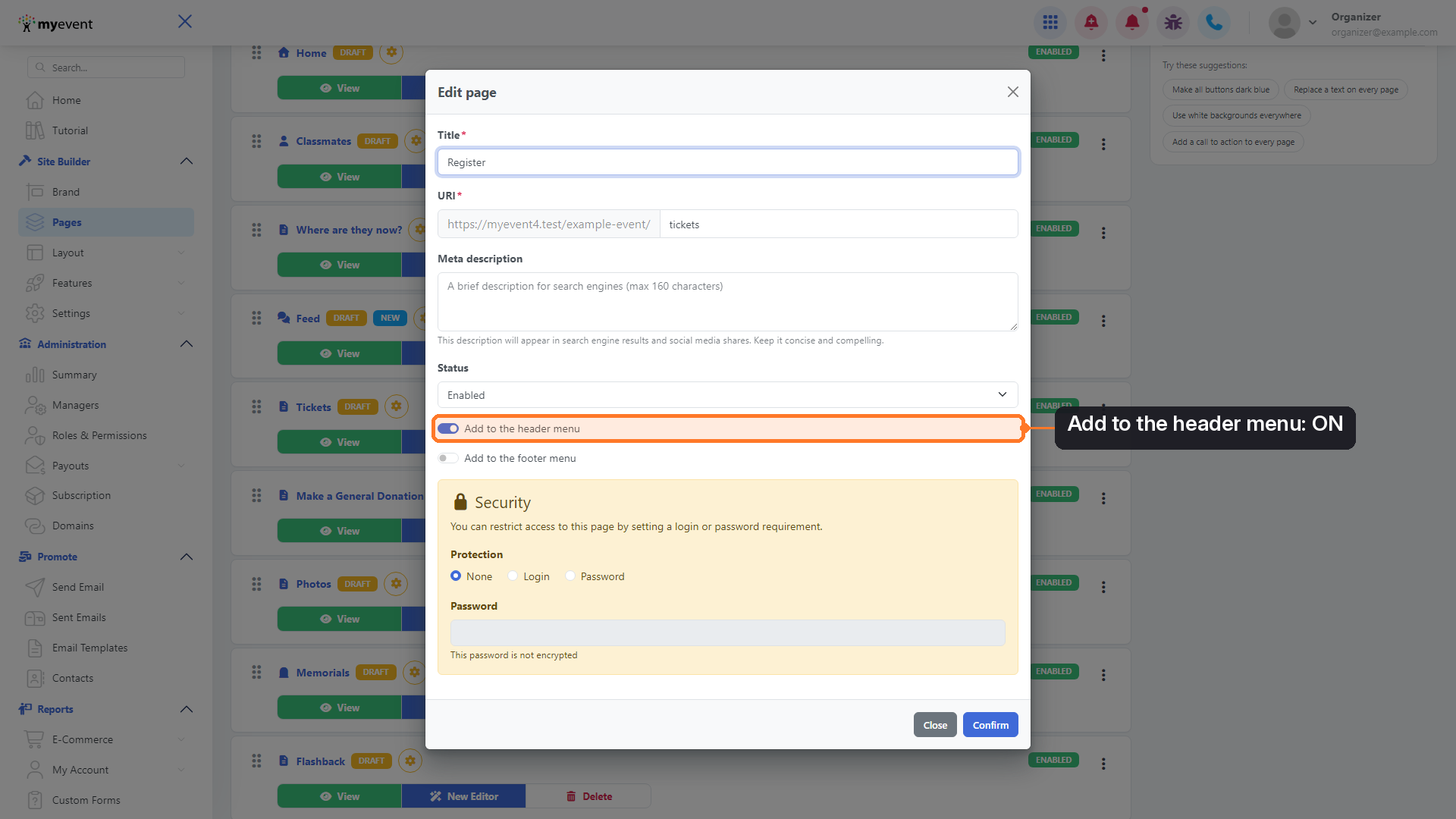
Step 4: Keep it in the header menu Make sure Add to the header menu is switched on. If it's off, the page won't appear in your header menu at all.
Step 5: Save your change Click Confirm.
Step 6: Check the result Your page now shows its new name in your list of pages.
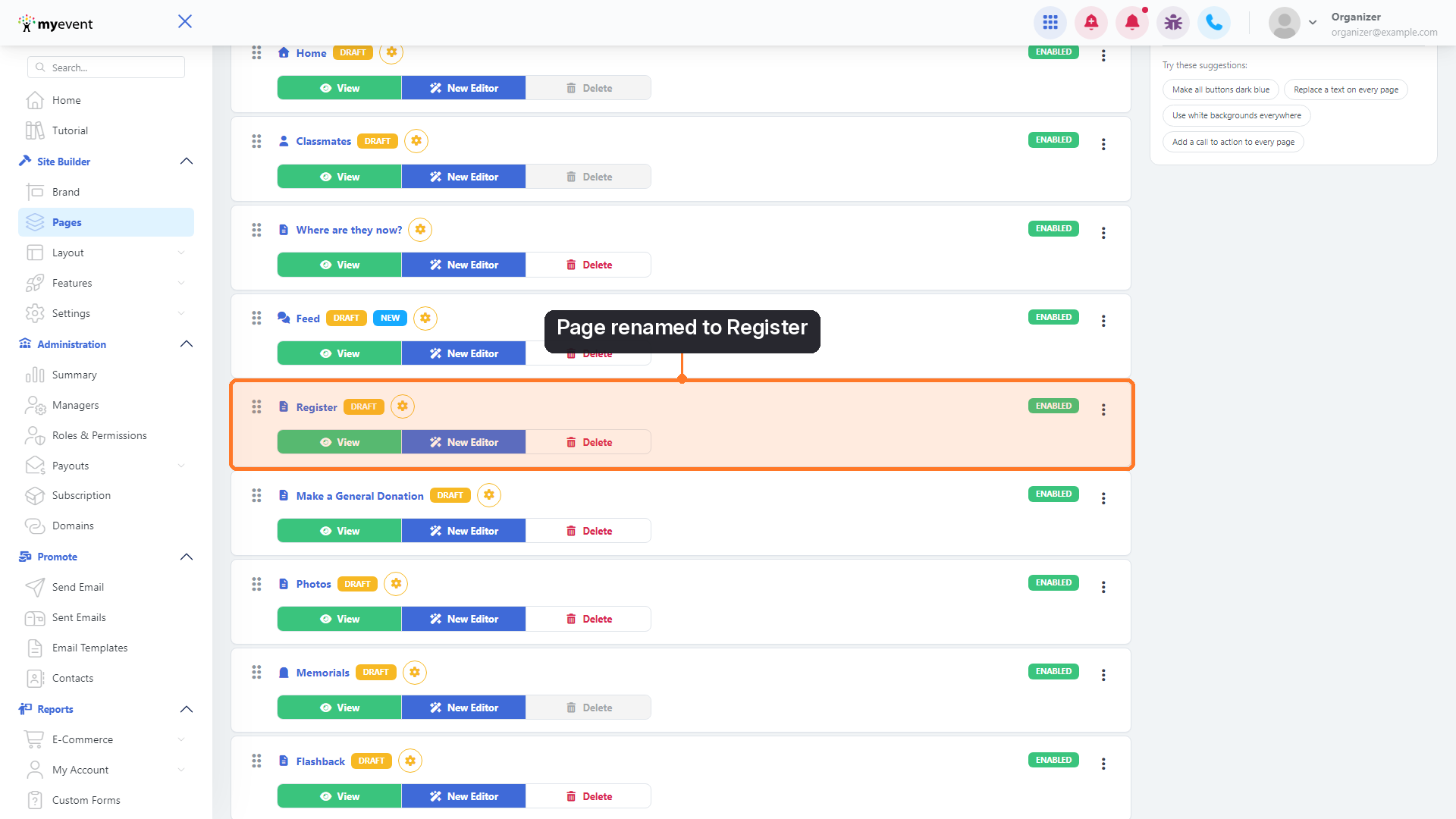
Your website's header menu also uses the new text right away.

Good to know
- Your page link stays the same. Renaming a page doesn't change its web address, so any links you've already shared keep working.
- Is your site in French? Just type the French label you want, for example Inscription or S'inscrire.
- Want the page in your footer too? Turn on Add to the footer menu in the same window.