

Before MyEvent can process online payments for you, the account owner must verify their identity once. This guide walks through every step so your event can accept online payments and receive payouts. It only takes a few minutes.
Why is identity verification needed?
Your organization's money goes to your organization, but you're the one who creates and manages the account. Verifying confirms you're a real, authorized person. It protects your organization, your attendees and supporters, and every payment from fraud and impersonation. Financial regulations and our payment partners require it. It doesn't mean the funds belong to you or make you personally responsible, and your information is used only for verification, security and compliance.
What you'll need
- A valid government-issued photo ID (driver's license, state ID or passport)
- A device with a camera (computer webcam or phone)
- A well-lit area with a plain background
Steps
1. Open the verification card
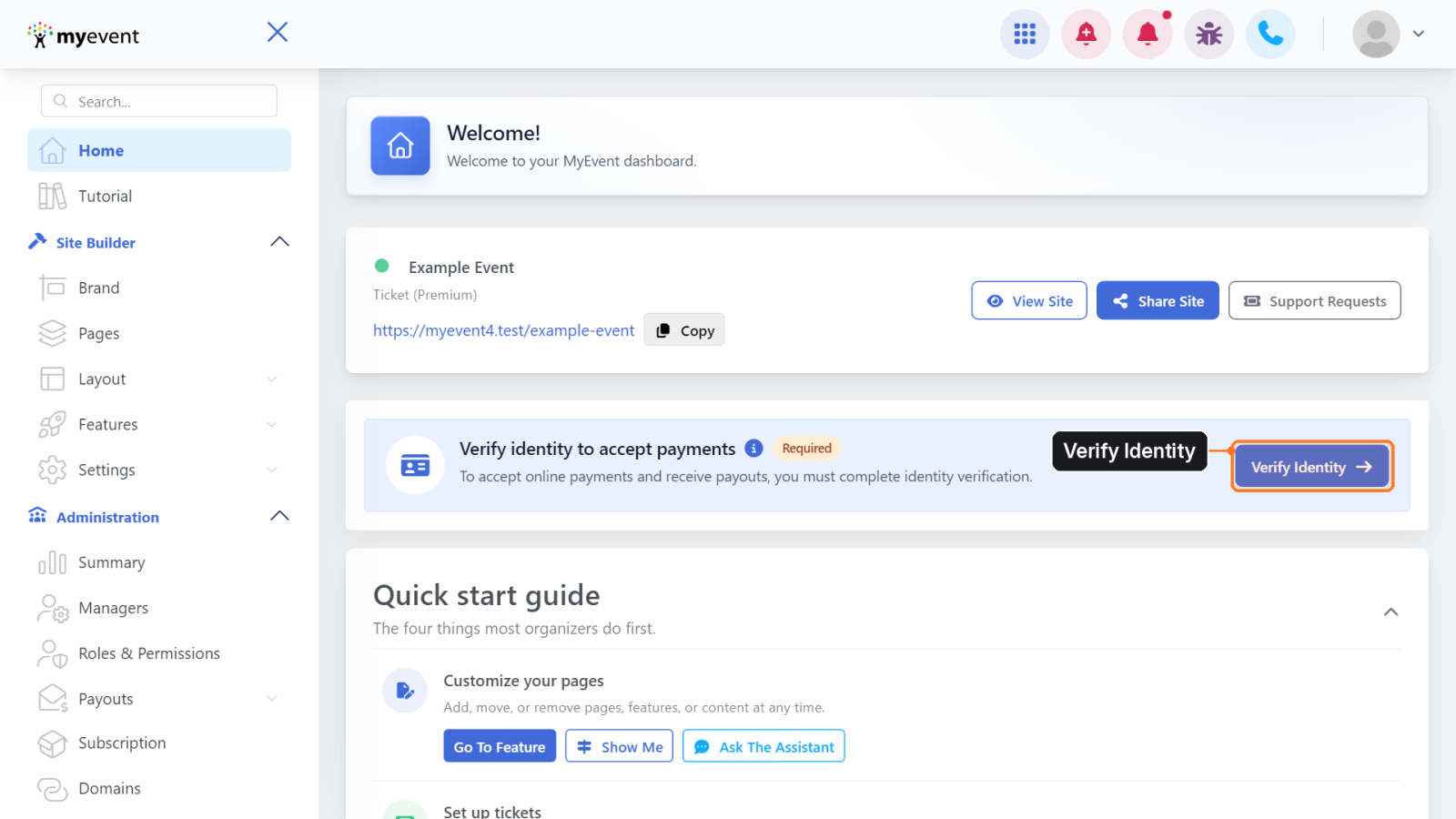
On your dashboard Home, find the card Verify identity to accept payments and click Verify Identity.
2. Read the Before you begin checklist
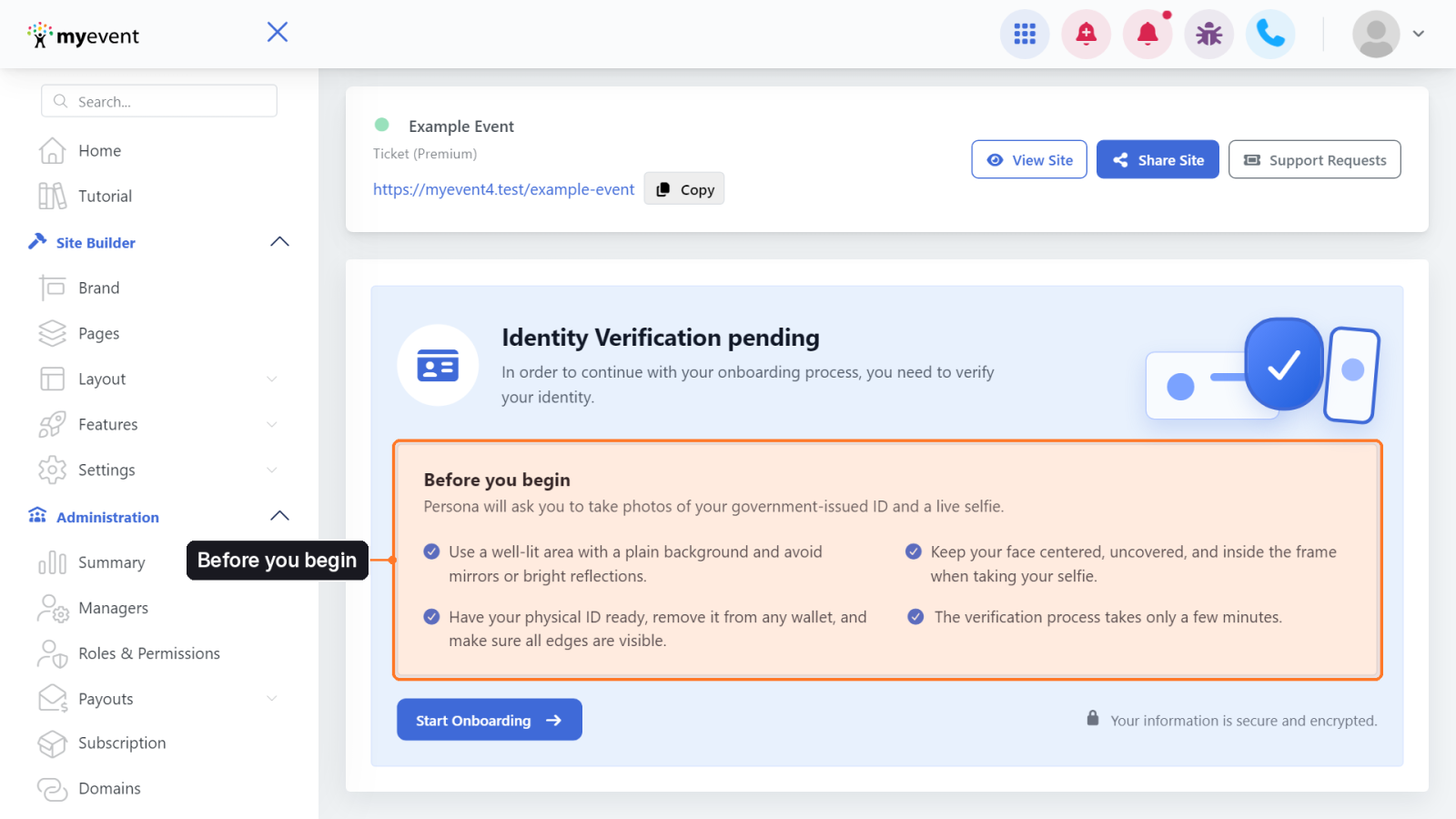
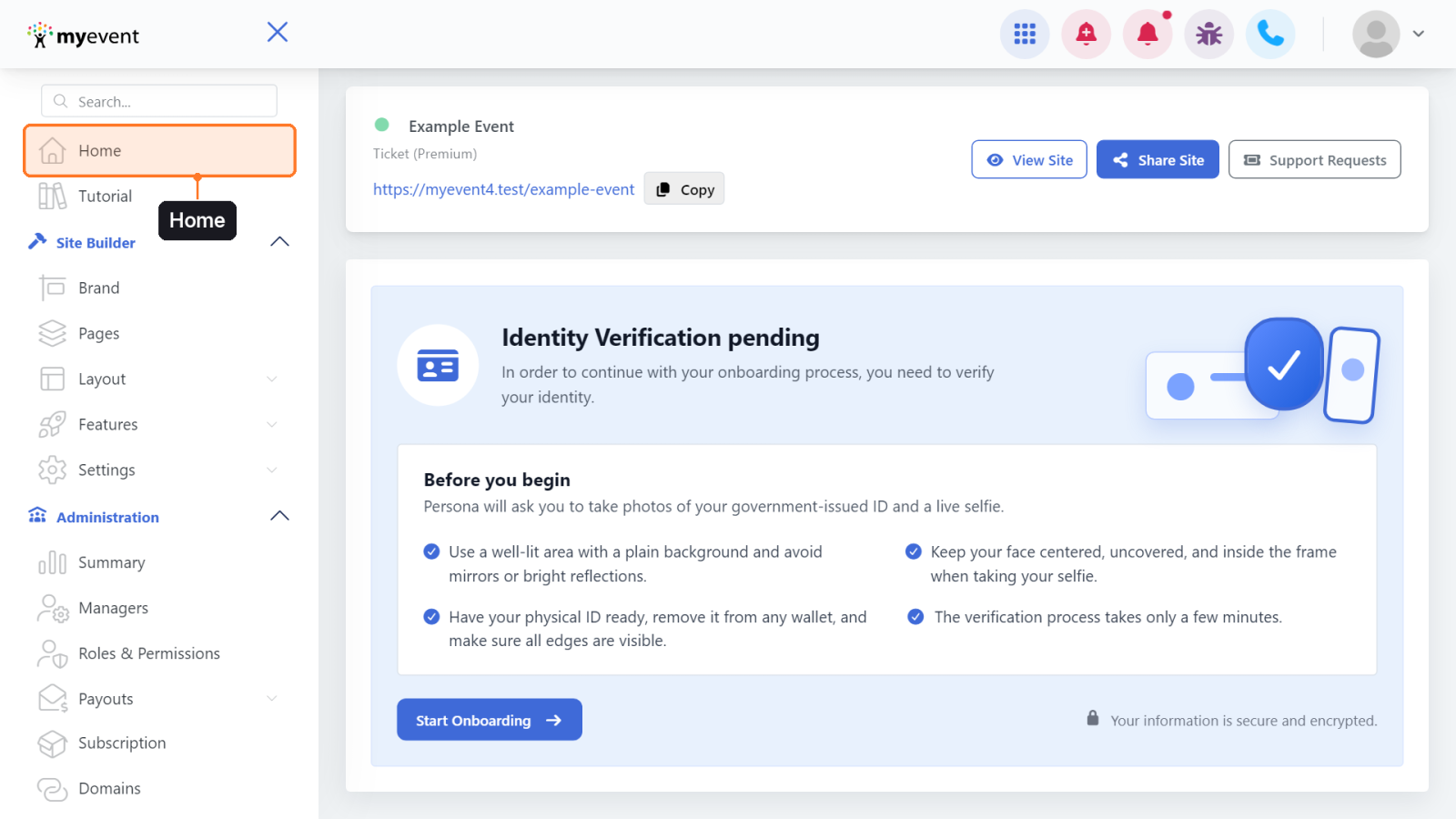
The Identity Verification page opens. Read Before you begin: you'll photograph your government-issued ID and take a live selfie. Use a well-lit spot with a plain background (no mirrors or bright reflections), have your physical ID out of any wallet, and keep your face centered and uncovered.
3. Click Start Onboarding
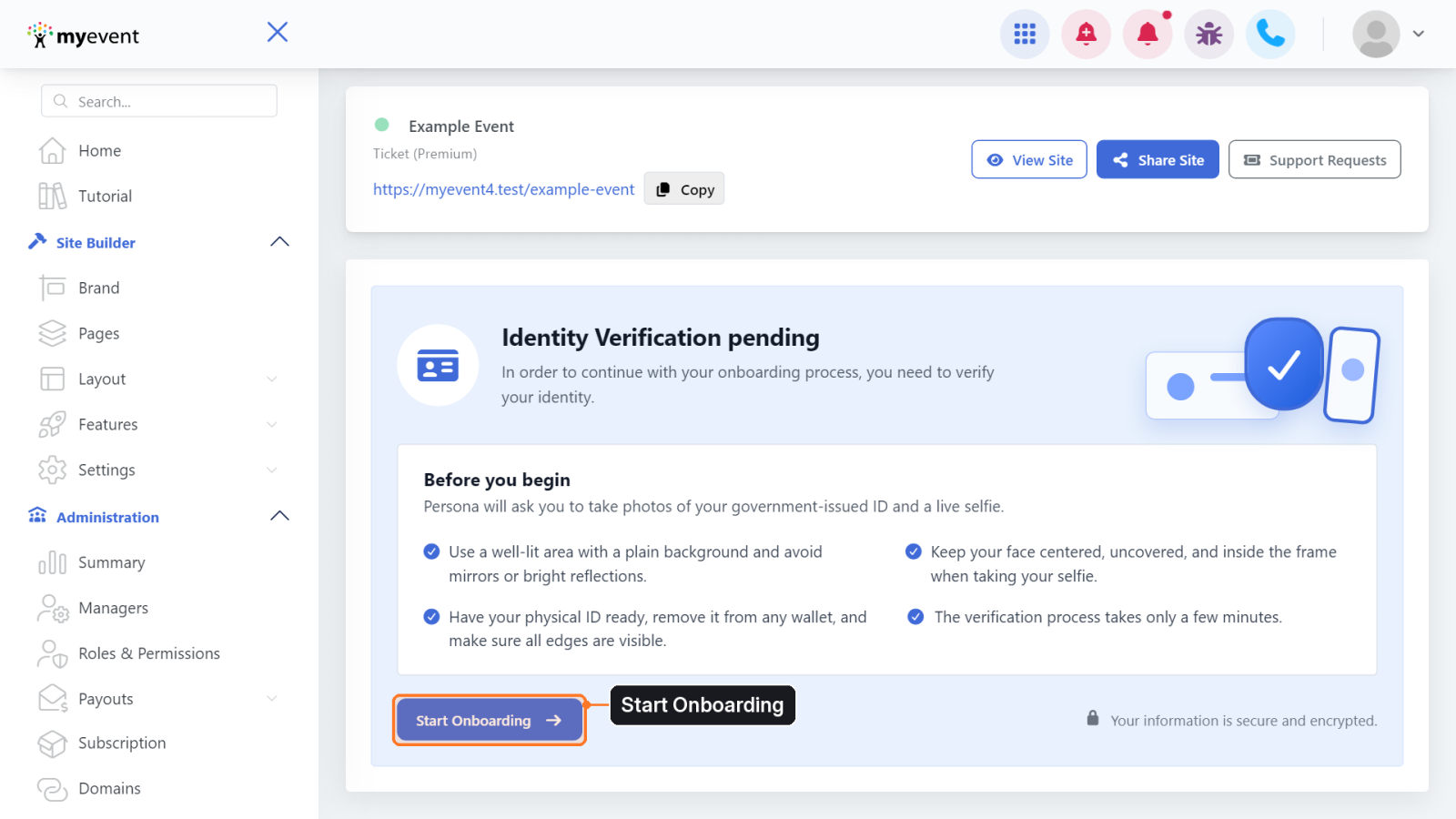
When you're ready, click Start Onboarding.
4. Begin verifying with Persona
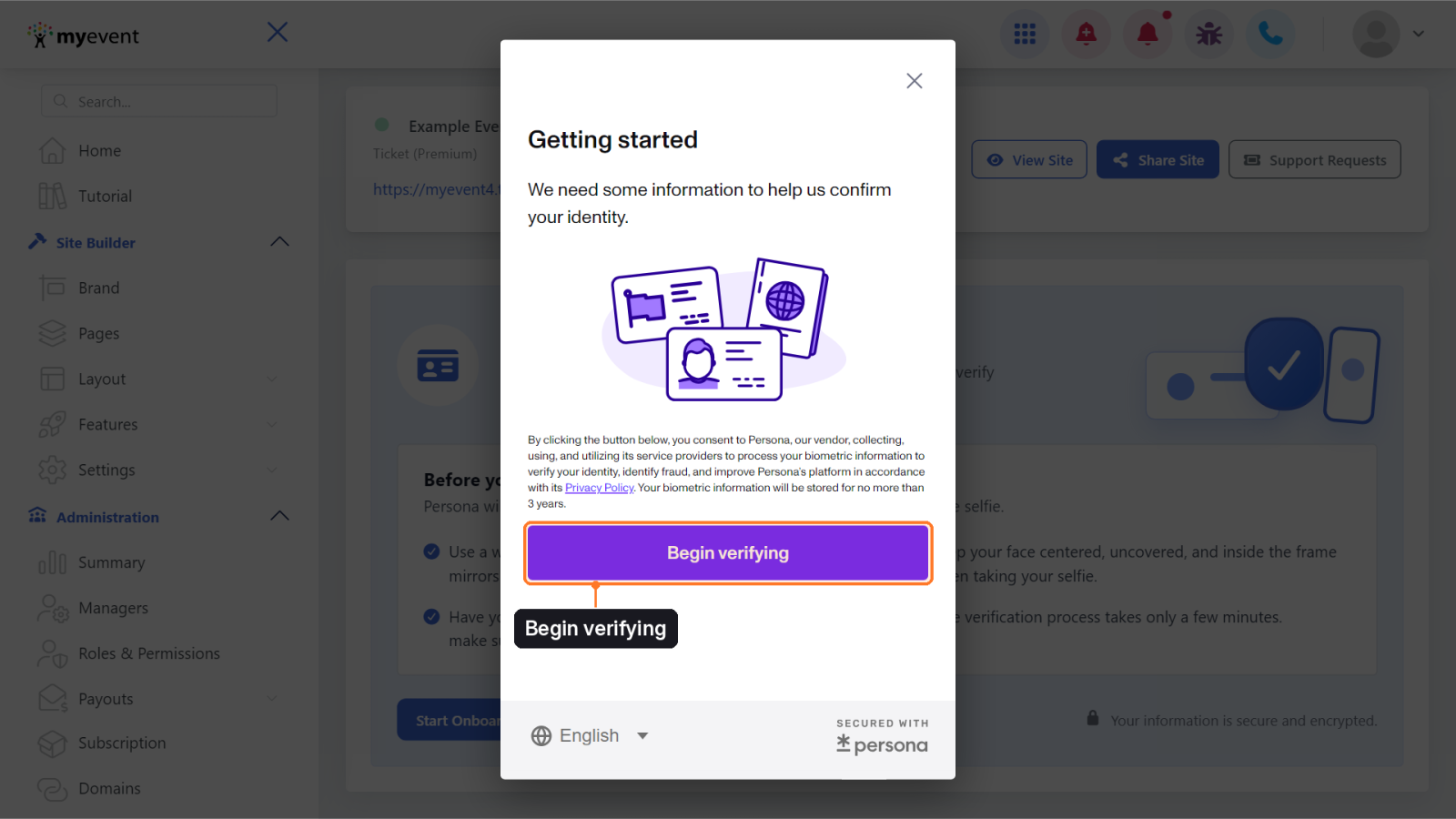
Our verification partner, Persona, opens in a window. Read the consent text, then click Begin verifying.
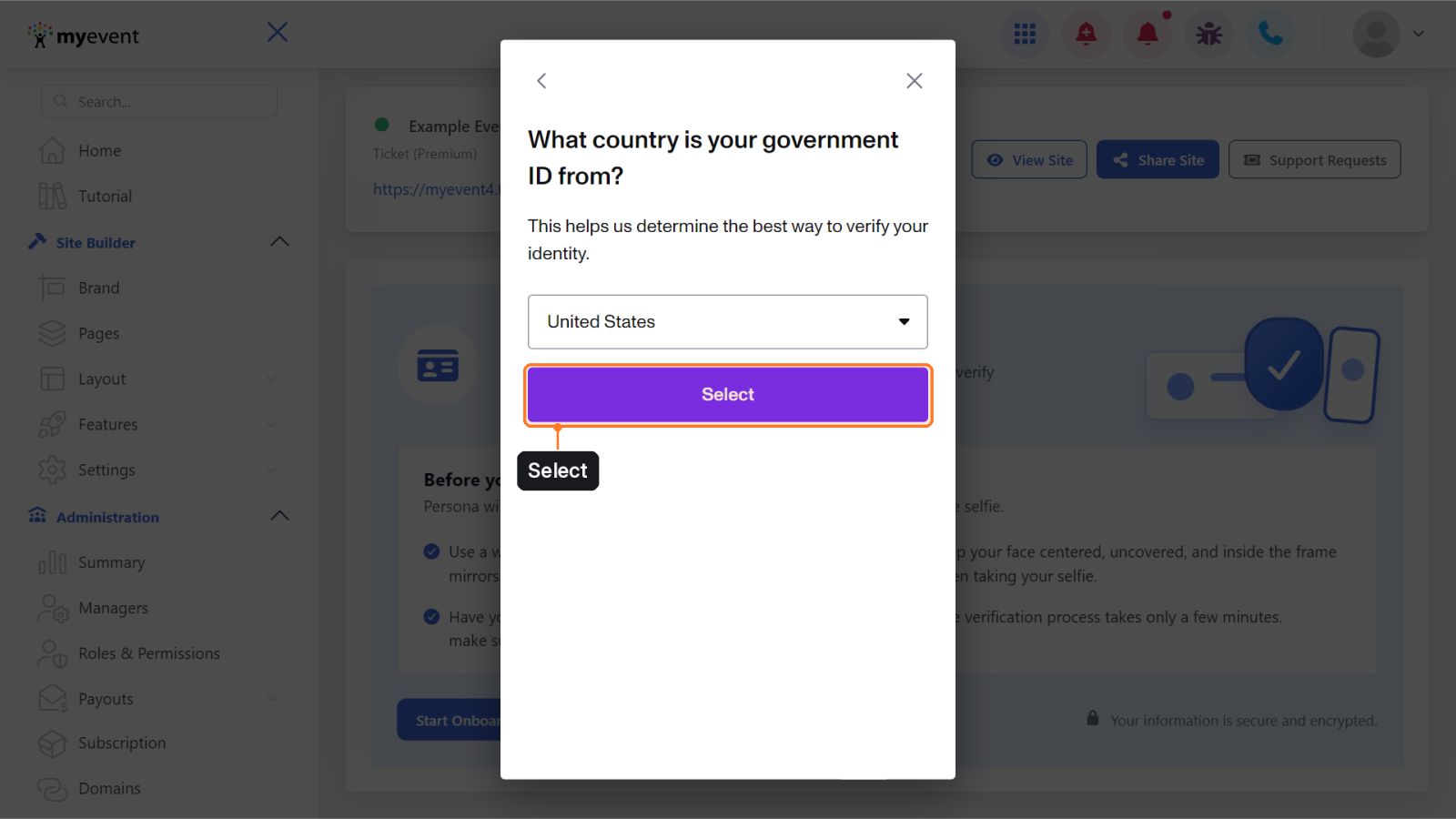
5. Choose your ID's country
Select the country that issued your ID, then click Select.
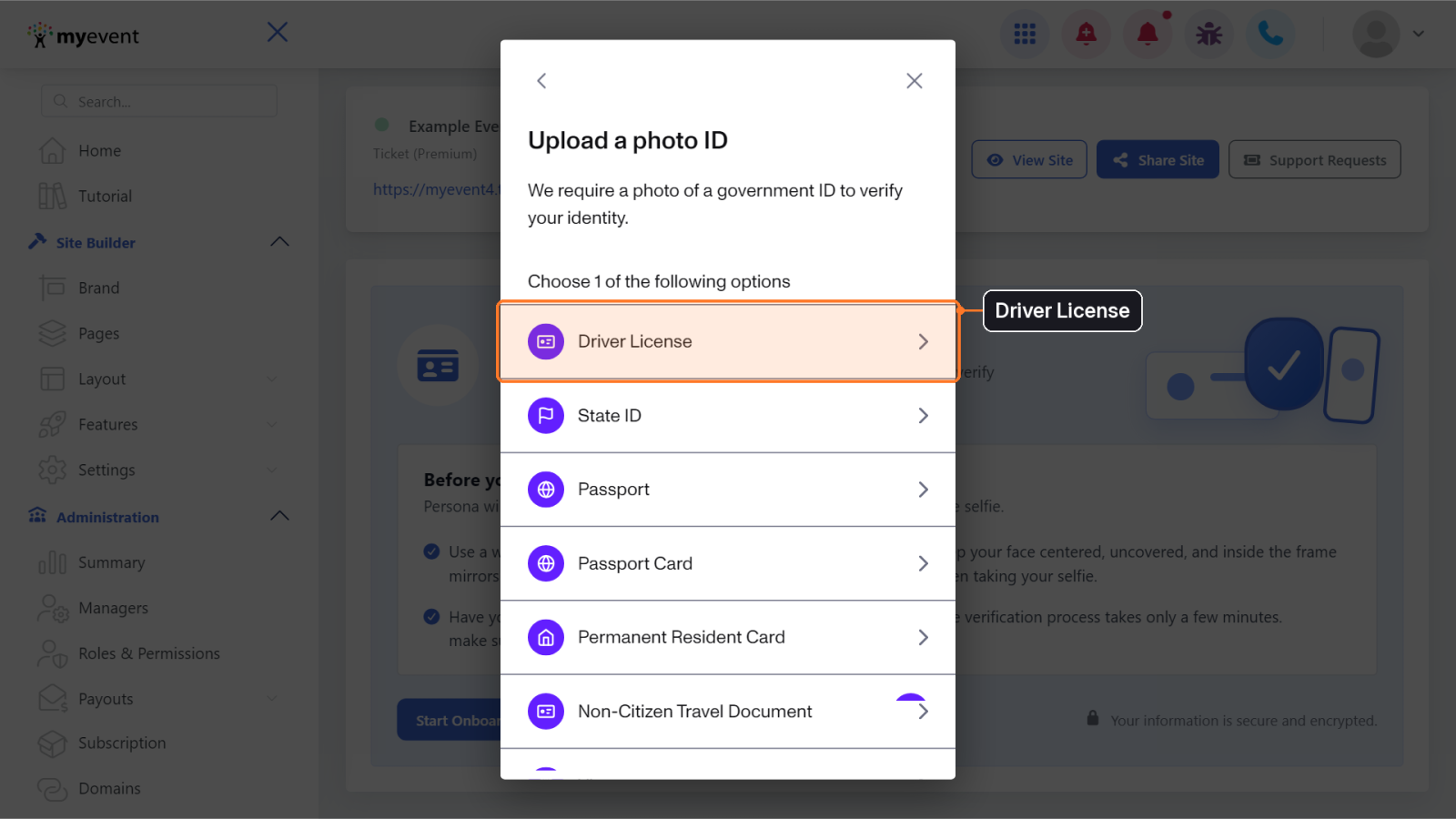
6. Choose your ID type
Pick the type of ID you'll use, such as Driver License, State ID or Passport.
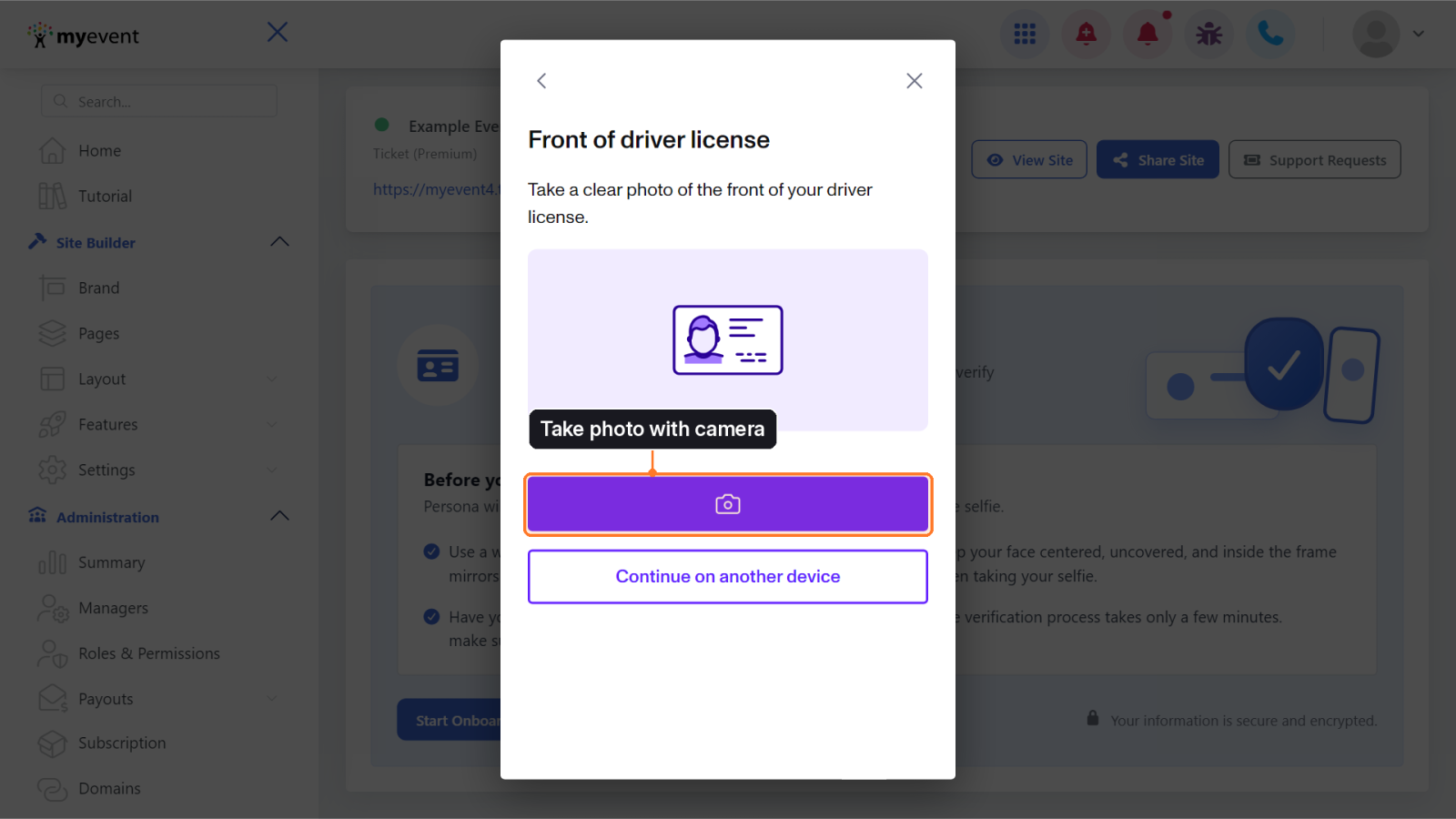
7. Photograph the front of your ID
Click Take photo with camera. You can also choose to continue on another device, like your phone.
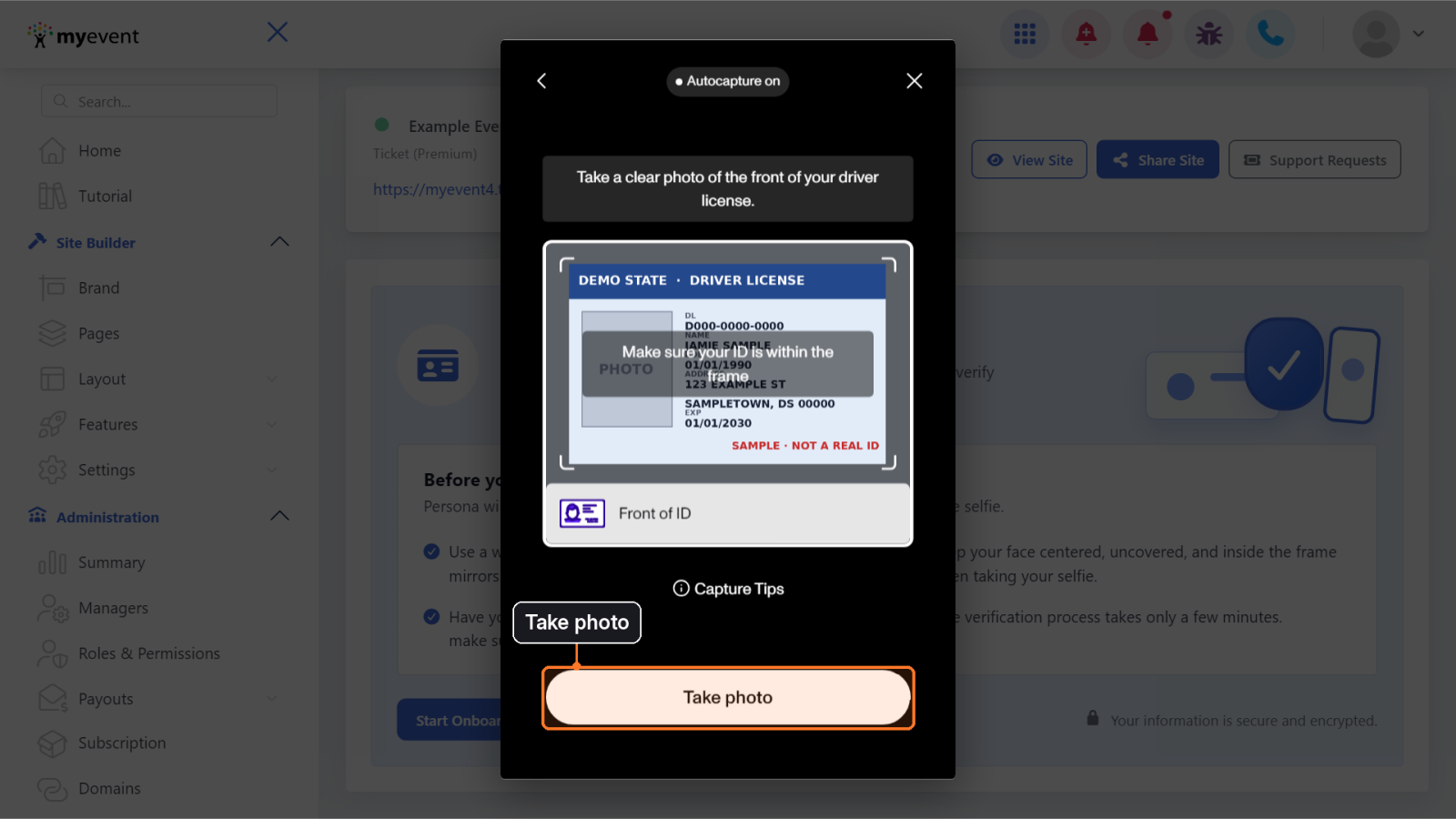
8. Capture the ID
Hold your ID inside the frame. Autocapture usually takes the photo; if not, click Take photo. If Persona asks for the back of your ID, repeat for the back.
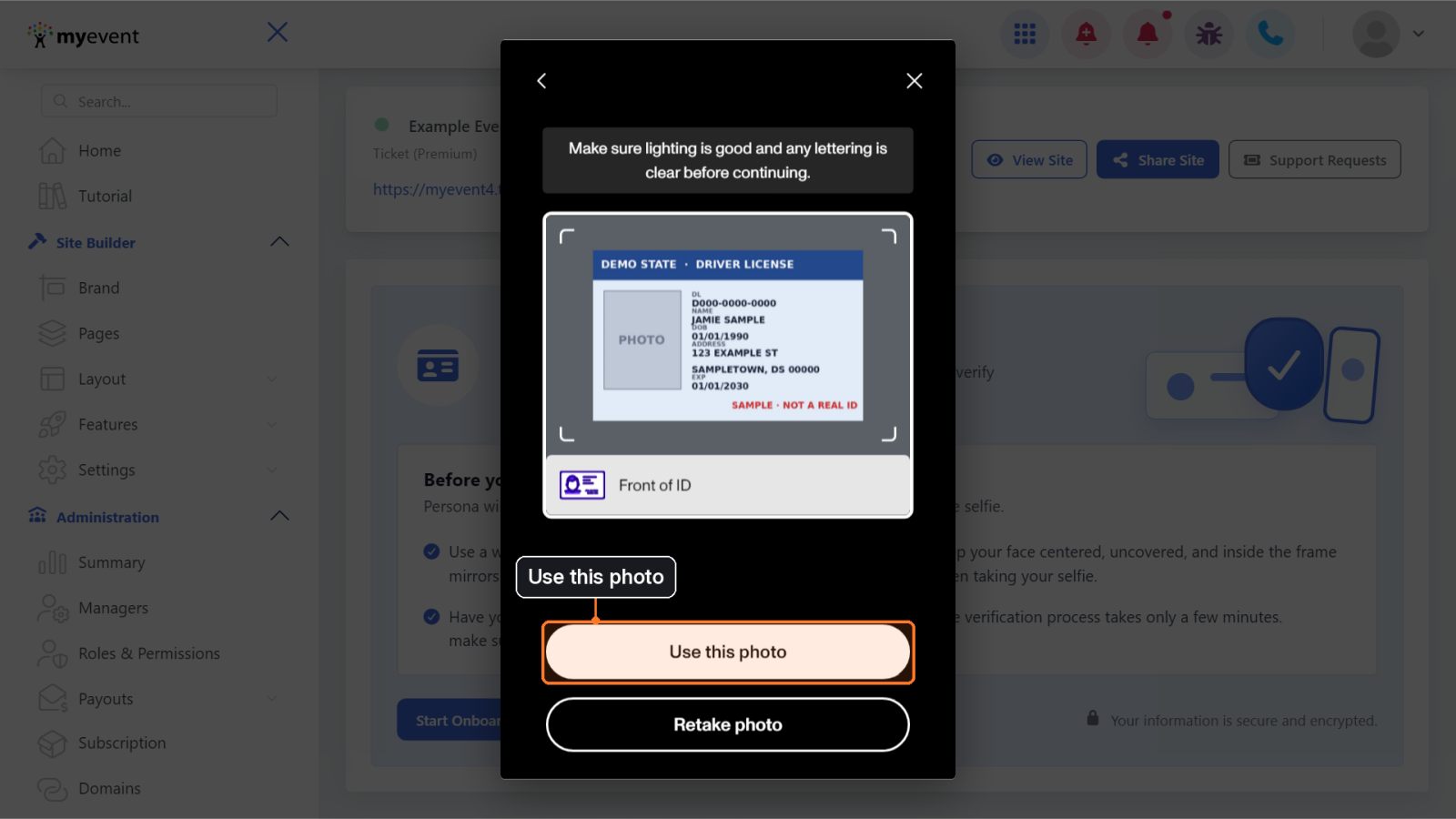
9. Review the photo
Check that the photo is sharp and all four edges are visible, then click Use this photo (or Retake photo). Persona processes your ID for a moment.
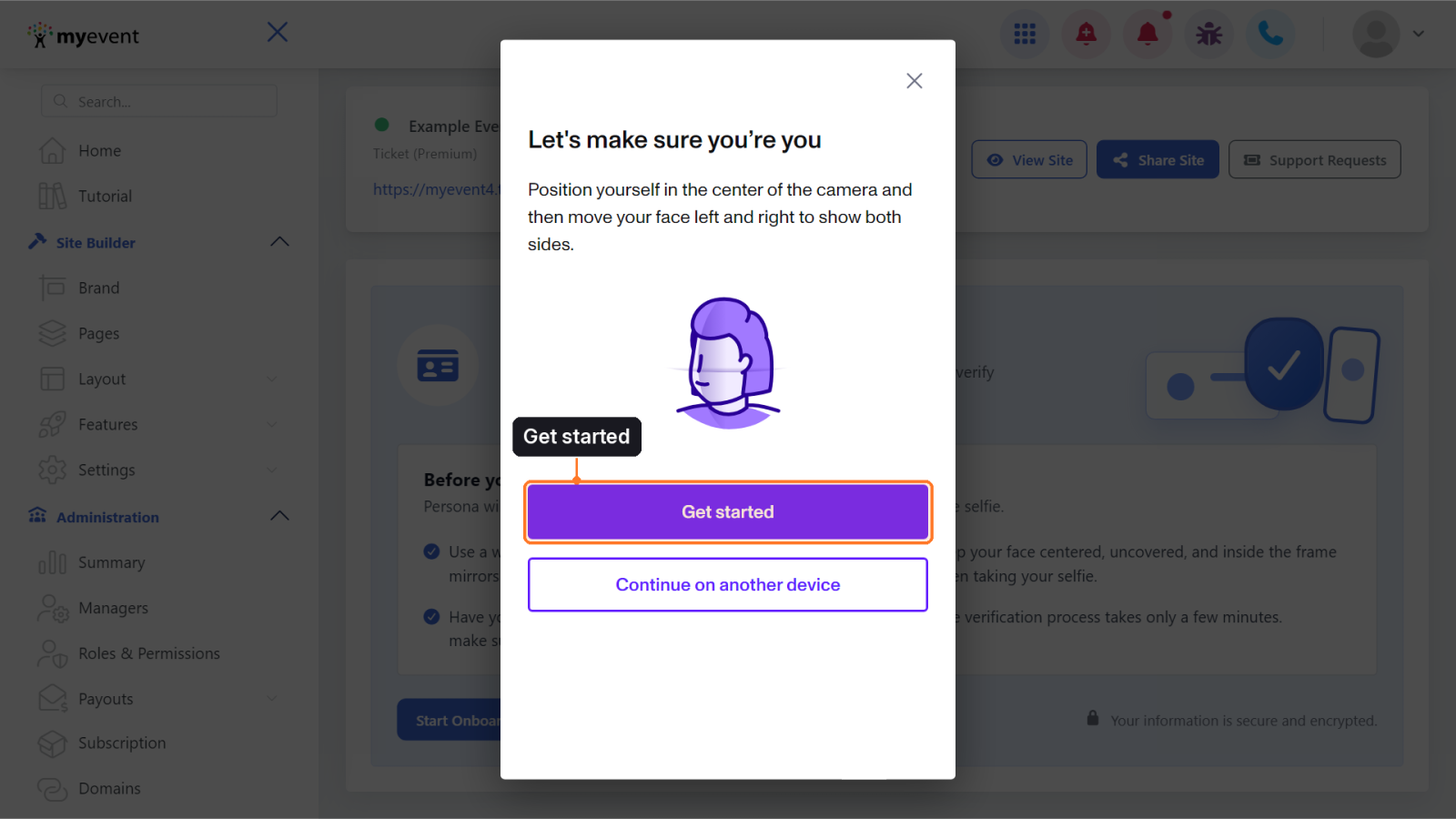
10. Start the selfie
Persona now confirms it's really you. Click Get started.
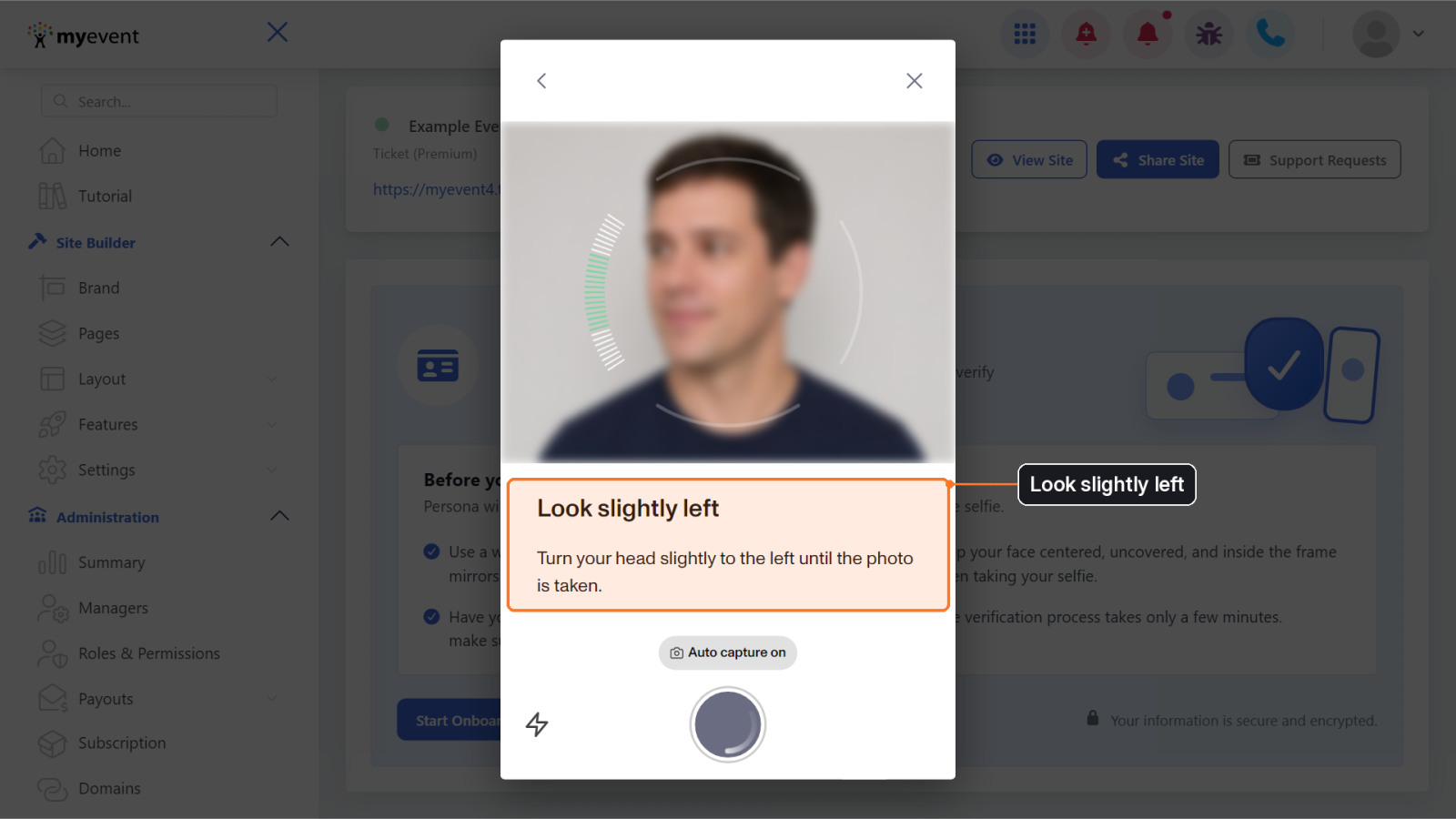
11. Follow the selfie prompts
Center your face, then follow the prompts to look straight, slightly left and slightly right. Each photo is taken automatically.
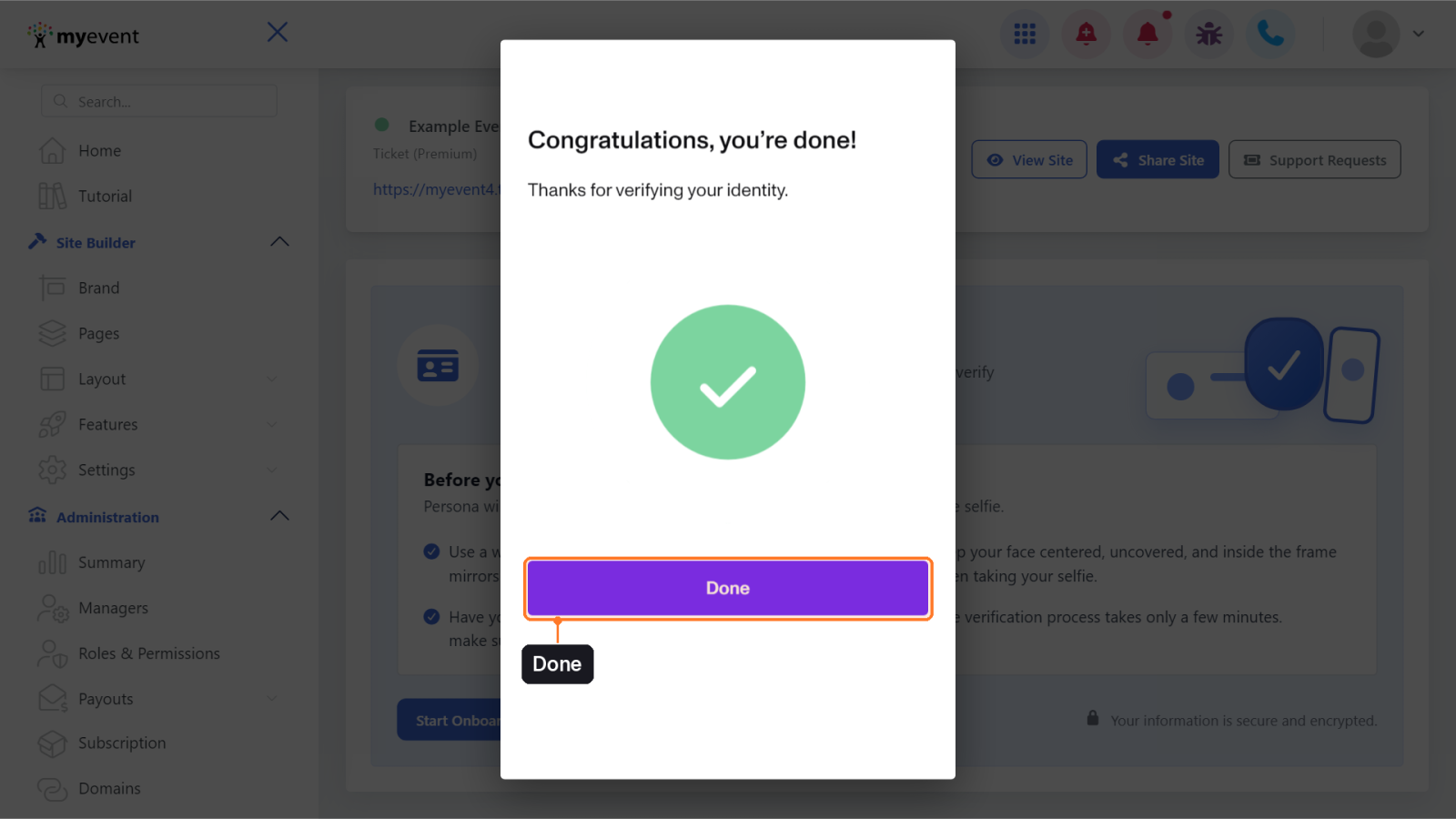
12. Finish
When you see Congratulations, click Done.
13. Return to Home
You're back on the Identity Verification page. Click Home in the left menu.
14. Check your status
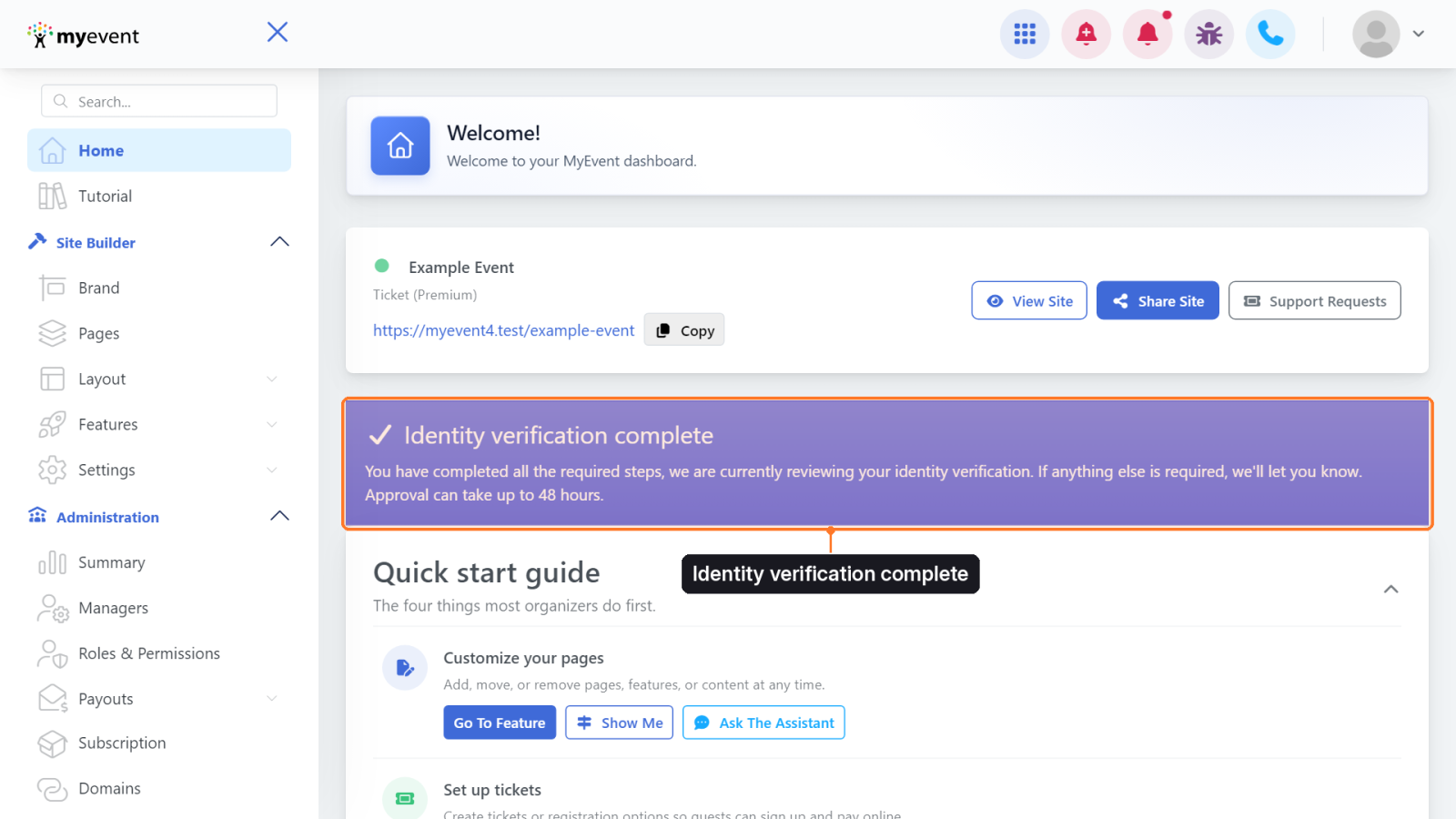
Your home page now shows Identity verification complete. Approval usually takes a few minutes, but may take up to 48 hours. If it takes longer, please contact our support team.
Tips
- If the window closes before you finish, click Start Onboarding again; Persona picks up where you left off.
- Remove glare: tilt the ID slightly away from lights and avoid mirrors behind you.
- Need help? Contact our support team from the phone icon at the top of your dashboard.