

Favorites let you pin the dashboard pages you use most to the top of the menu, so they're always one click away. Your favorites are personal: each manager has their own list on each site, and other managers don't see it.
Step 1: Star a page in the menu
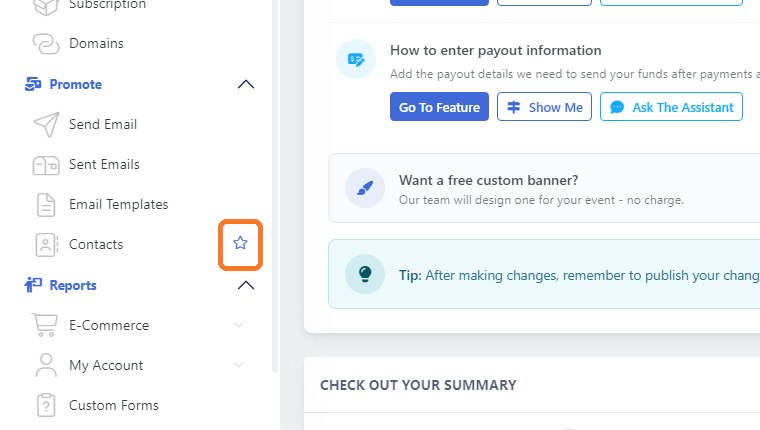
In the menu on the left, point to the page you want to add, for example Contacts. A star appears on the right. Click the star (Add to favorites).
Step 2: Find it under Favorites
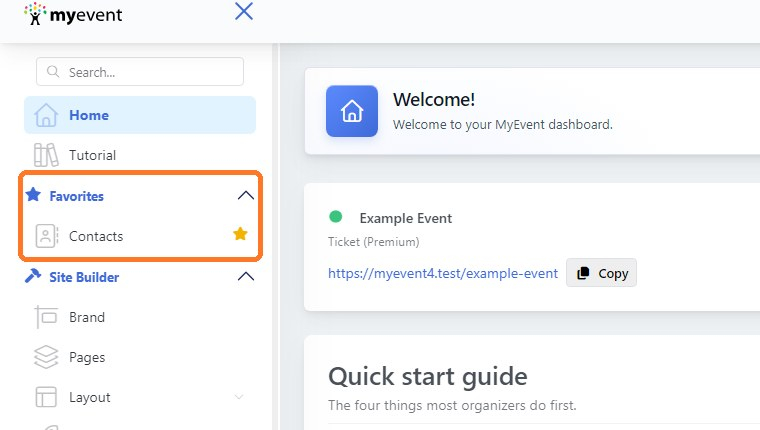
The page now shows in the Favorites section, just below Home and Tutorial, and its star turns yellow. Click it to go straight to that page. Favorites stay in the menu on every page and are saved, so they're still there the next time you sign in.
Step 3: Star pages inside a section
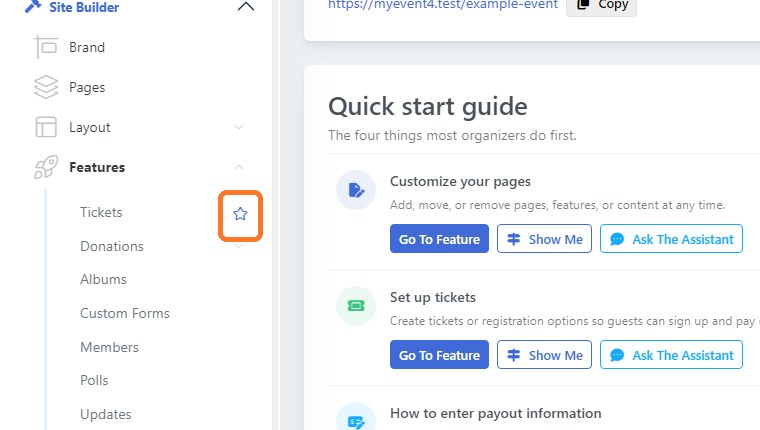
You can also star pages inside a section. For example, click Features to open it, point to Tickets and click its star. New favorites are added to the end of the list.
Step 4: Change the order
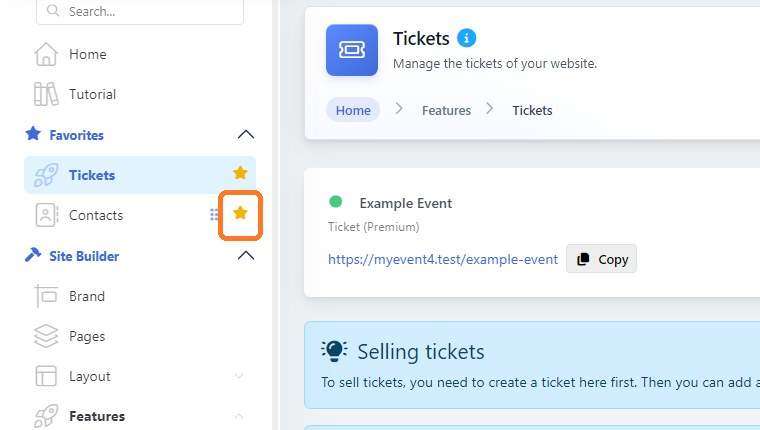
Point to a favorite and drag it up or down by its grip (Drag to reorder). The new order is saved right away.

Step 5: Remove a favorite
Click the yellow star (Remove from favorites) on the favorite, or on the page in its usual place in the menu. The page is removed from Favorites but stays in the menu where it was. When you have no favorites, the Favorites section is hidden.
Good to know
- You can collapse the Favorites section like any other section of the menu.
- If you lose access to a page (for example, your role changes), it no longer shows in your Favorites.
- If you see "Your favorites could not be saved. Please try again.", refresh the page and try again.