

Created a website by mistake, or no longer need it? As the owner, you can delete or disable it yourself from Settings > General. You'll see exactly what will happen before anything is deleted.
Note: Only the website owner can do this. Other team members see "Only the owner can delete this site."
Step 1: Open General settings
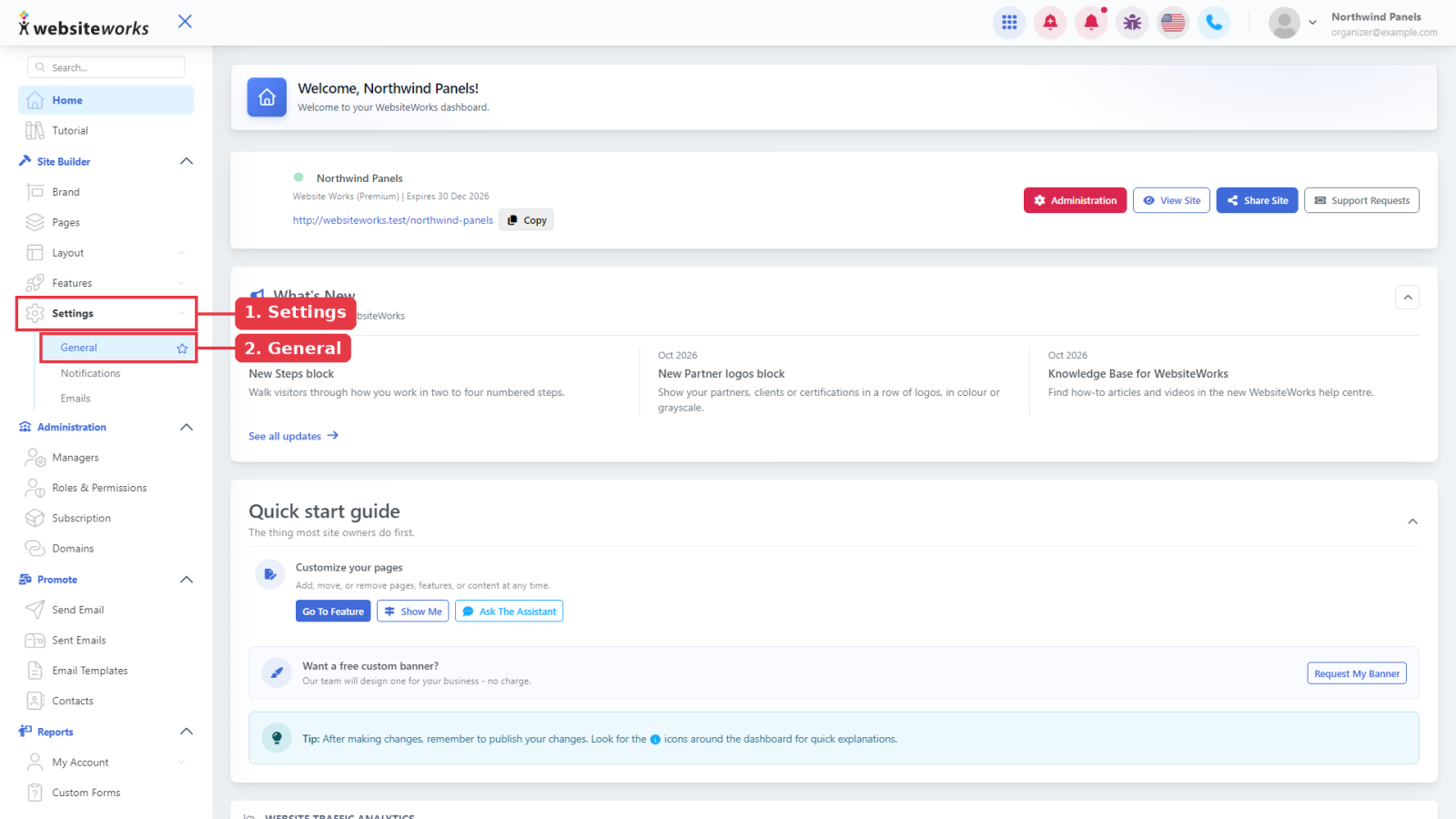
From your Home page, click Settings in the sidebar, then click General.
Step 2: Find the Danger zone
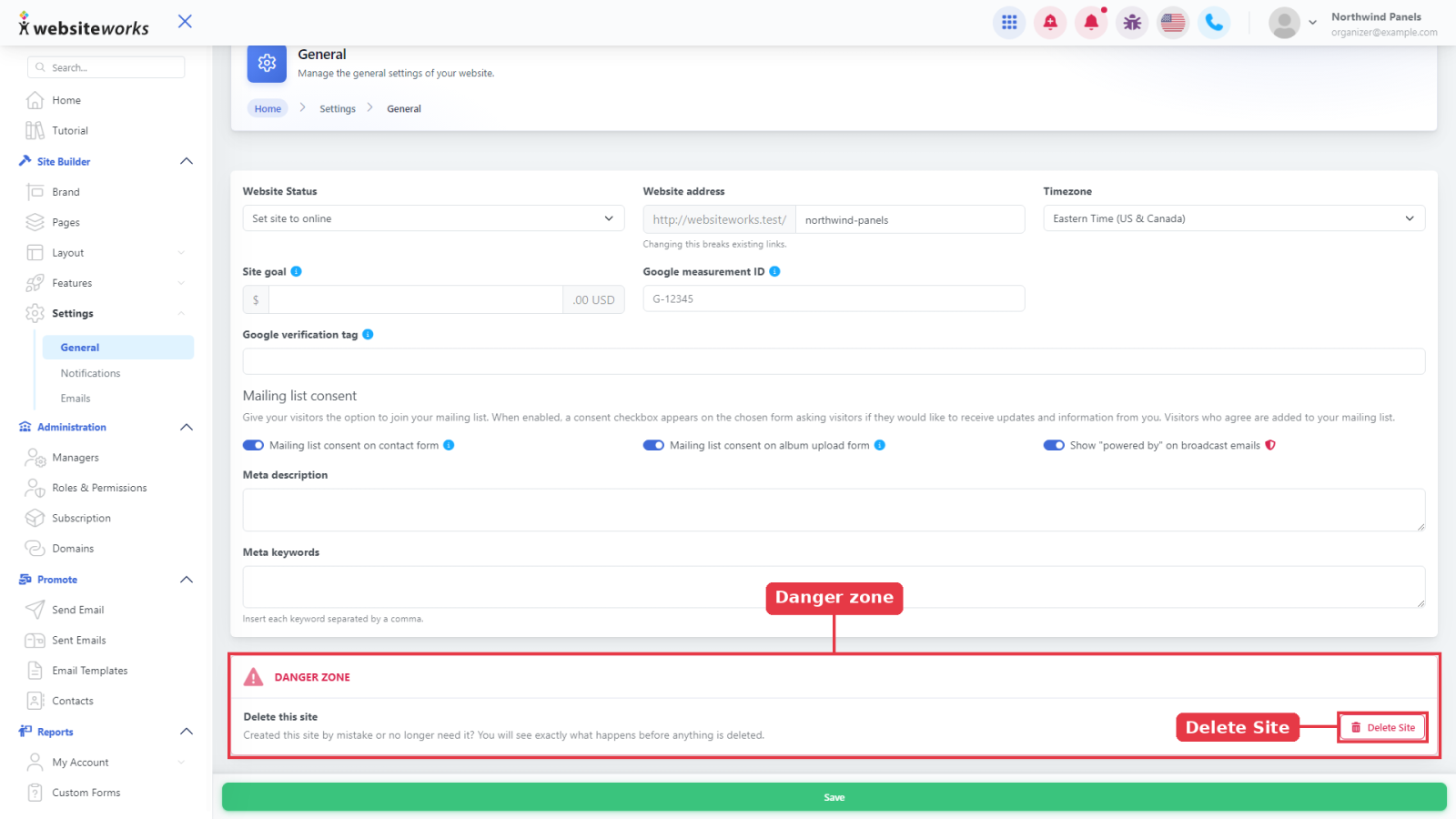
Scroll to the bottom of the page. In the Danger zone card, under Delete this site, click Delete Site. Nothing is deleted yet.
Step 3: Check what will happen
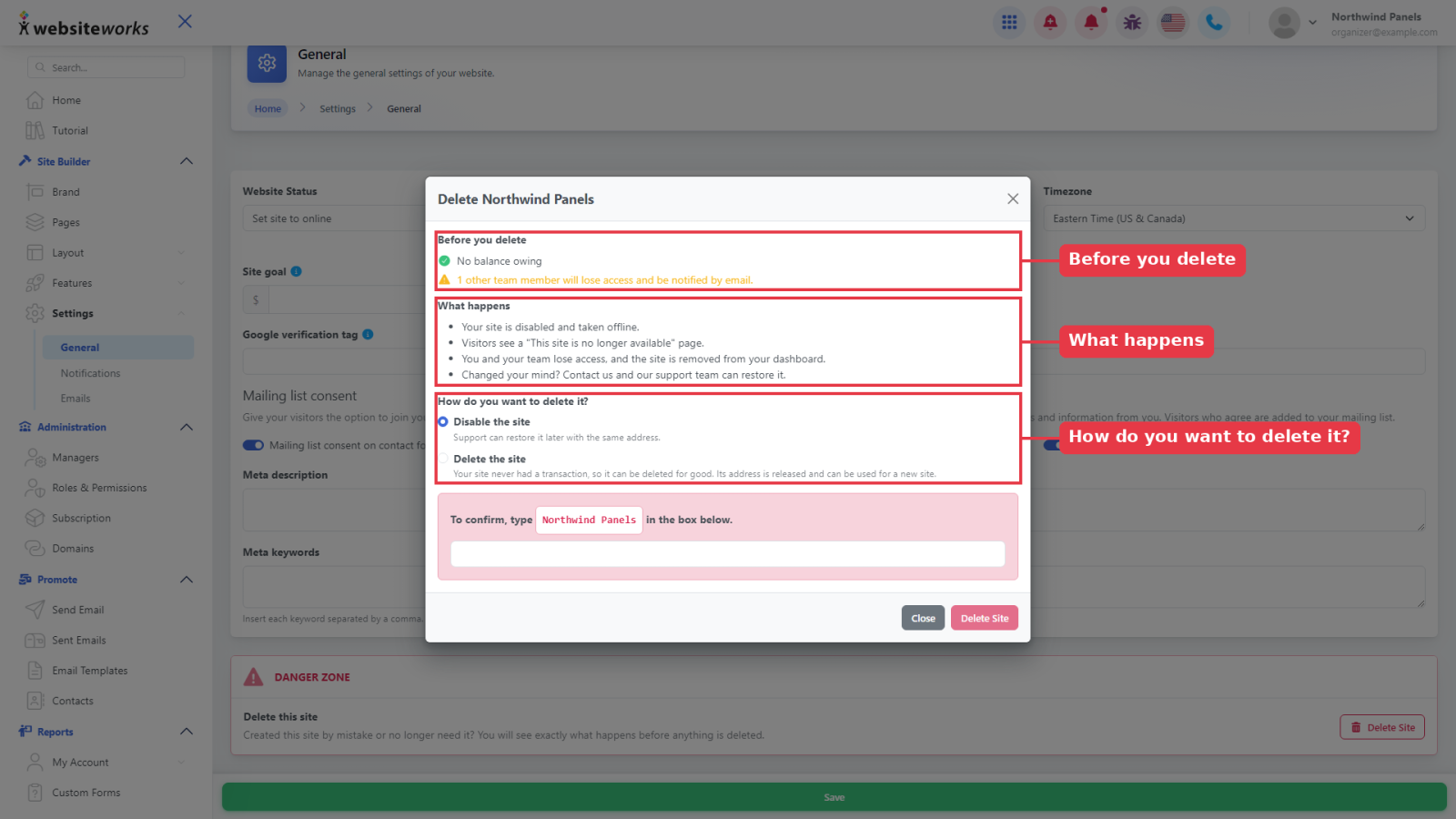
Under Before you delete, review the list:
- No balance owing. If you owe a balance, you'll see "This site can't be deleted yet", with buttons to Pay balance or Contact support.
- Your subscription will be cancelled and you will not be charged again.
- Your other team members will lose access and be notified by email.
What happens explains the result:
- Your site is disabled and taken offline.
- Visitors see a "This site is no longer available" page.
- You and your team lose access, and the site is removed from your dashboard.
- Changed your mind? Contact us and our support team can restore it.
Step 4: Choose how to delete it (only if your site never had a transaction)
If your site has never had a transaction, you'll see How do you want to delete it?
- Disable the site (selected by default): support can restore it later with the same address.
- Delete the site: your site is deleted for good. Its address is released and can be used for a new site.
Sites that have had transactions are always disabled, so you won't see this choice.
Step 5: Confirm
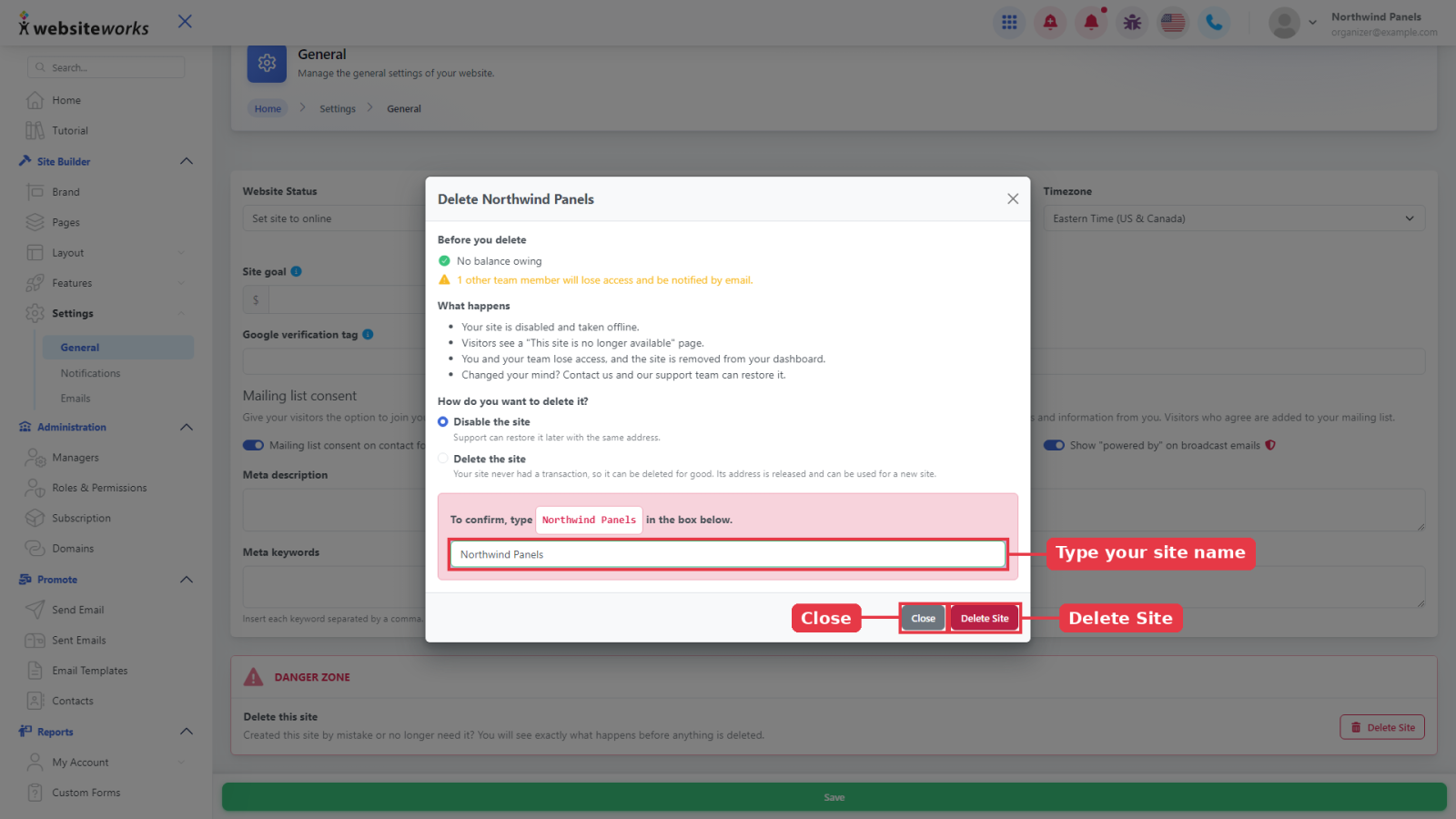
Type your site's name exactly as shown in the box under To confirm, type ... in the box below. The Delete Site button turns on once the name matches. Click it to finish, or click Close if you changed your mind.
Changed your mind?
A disabled site can be restored by our support team with the same address. Just contact us.