

Dans votre Tableau de bord dans la colonne de gauche, allez à Promouvoir → Promouvoir.
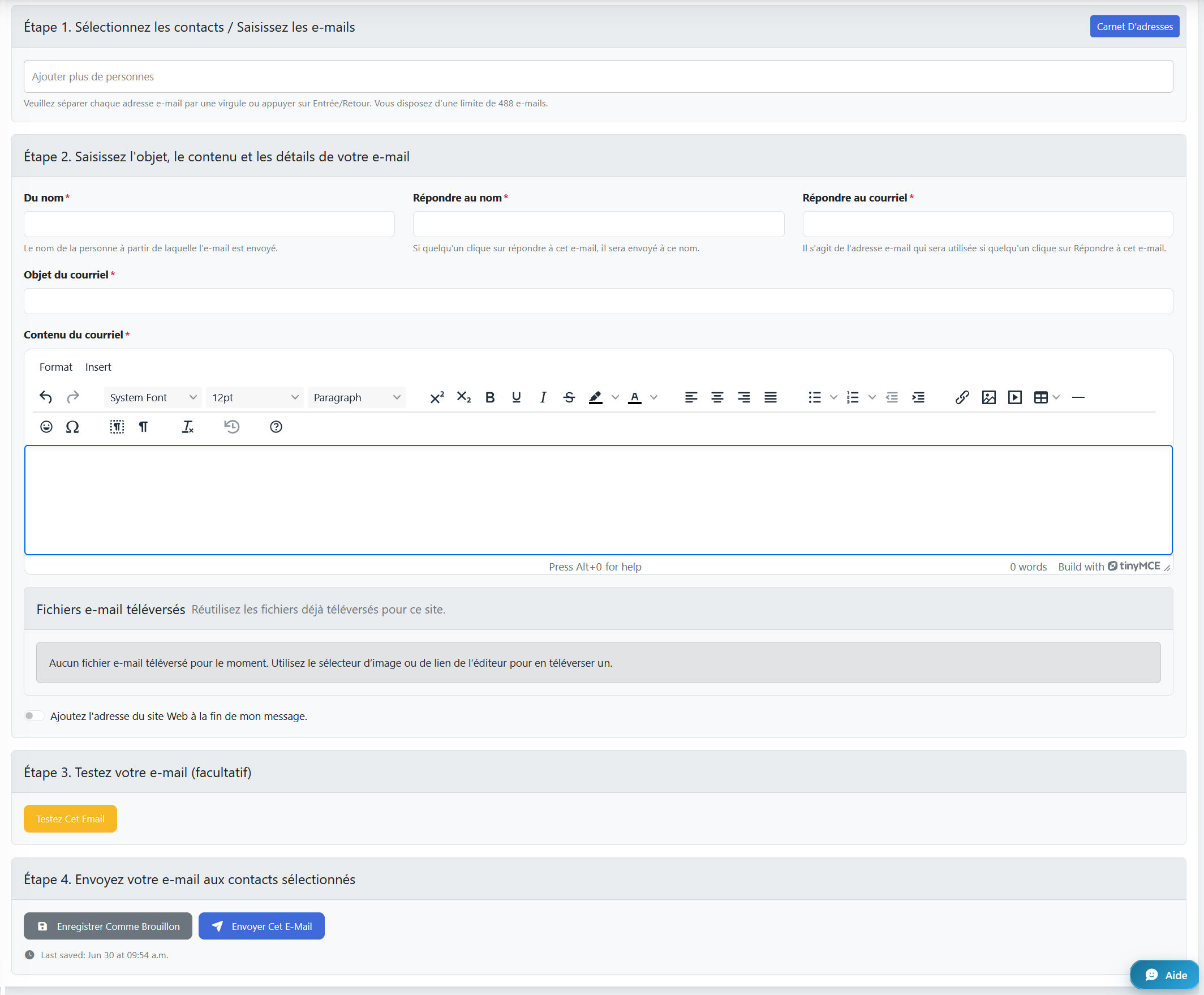
1. Vous pouvez saisir des adresses e-mail manuellement (idéal si vous n'en avez que quelques-unes), ou ajouter en une seule fois de nombreux e-mails depuis vos "Contacts".
Manuellement :
Saisissez les adresses e-mail manuellement, séparées par une virgule. Vous pouvez également coller manuellement des e-mails copiés depuis une feuille de données ou une liste séparée par des virgules.
Depuis les Contacts :
Cliquez sur le bouton Carnet d'adresses→ Sélectionnez les contacts que vous souhaitez ajouter à l'e-mail groupé, ou utilisez le bouton Tout cocher ou tout décocher en bas pour sélectionner tout le monde, puis cliquez sur Ajouter des contacts.
2. À l'étape 2, renseignez un "Nom de l'expéditeur", un "Nom de réponse" et une "Adresse e-mail de réponse". En général, il s'agit de votre adresse e-mail, sauf si vous avez une personne dédiée à qui vous souhaitez faire parvenir les demandes ou les réponses, ou si vous avez créé une adresse e-mail séparée à cet effet.
3. Saisissez un objet, puis tapez votre message dans la zone de contenu.
4. Nous vous recommandons vivement d'activer l'option "Ajouter le nom de votre site et l'adresse du site à la fin de mon message", afin qu'un lien cliquable vers votre site soit automatiquement inclus dans l'e-mail.
5. Une fois l'objet saisi et votre message rédigé, cliquez sur le bouton "Tester cet e-mail" (Étape 3 - Tester votre e-mail). Un e-mail de test sera envoyé au propriétaire du site. Une fois le message relu et les modifications nécessaires apportées, vous êtes prêt à l'envoyer.
6. Cliquez sur le bouton "Envoyer cet e-mail" pour envoyer l'e-mail à tous les contacts que vous avez saisis manuellement ou sélectionnés depuis vos Contacts.
Veuillez noter qu'une fois l'e-mail programmé, son envoi à l'ensemble de votre liste peut prendre jusqu'à 10 minutes.
Pour savoir comment annuler un e-mail groupé programmé avant son envoi, consultez Comment annuler un e-mail groupé.