

Control who can access specific pages on your event website by implementing page security and access restrictions.
Why Use Page Security?
Page security is useful for:
-
Creating participant-only content
-
Restricting VIP or premium content
-
Internal team pages for volunteers or staff
-
Sponsor-only areas
-
Pre-event information for registered participants
-
Protected resources and downloads
Step 1: Access Security Settings
Navigate to Site Builder→ Pages and you can either set a global page protection (which will enforce it across the entire system) or individual page. If you want to set it across the entire website, you'll need to click on "Global Page Protection" at the top right corner. If you want to do it on a specific page, you'll need to click on "Settings" the yellow button and at the bottom of the modal you'll see "Security".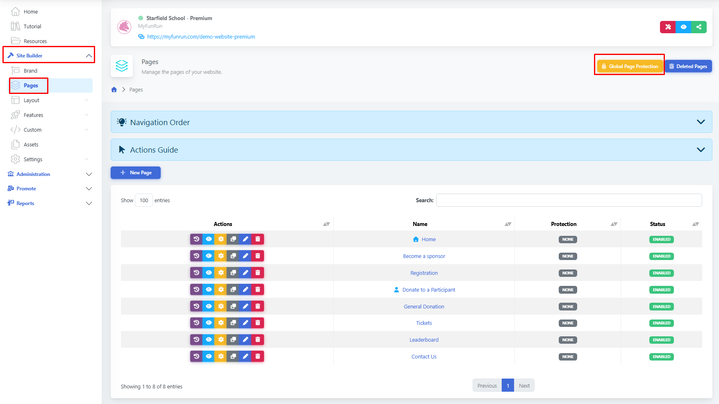
Step 2: Choose Security Level
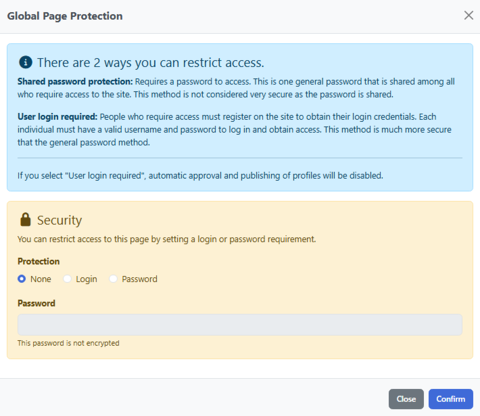
Select the appropriate security level for your page:
-
None: Anyone can view this page (default setting)
-
Login: Only logged-in users can access
-
Password Protected: Require a password to view the page
For Registered Users Only
-
Toggle the 'Require Login' option
-
Set the redirect URL for non-logged-in users (usually the login page)
For Password Protection
-
Enable password protection
-
Set a strong password
-
Configure the password prompt message
-
Note: One password per page (not per user)
Step 3: Save and Test
After configuring security:
Save your page settings
-
Log out or use an incognito window
-
Try to access the page to verify security is working
Managing Protected Content
Navigation Considerations
- Protected pages can still appear in navigation menus
- Consider adding a "Members" section from the main menu to protected pages
Best Practices
-
Use clear messaging about why content is restricted
-
Provide an easy path to gain access (registration link, login button)
-
Don't make too many pages private - it can frustrate visitors
-
For password-protected pages, use strong, unique passwords
-
Regularly audit who has access to protected content
-
Test security settings before announcing protected pages
-
Consider creating a dedicated login page for a better user experience
-
Keep public pages informative enough to encourage registration
Security Levels by Use Case
Participant Resources
-
Security Level: Login Only
-
Example: Event day schedule, participant guide, download links
Sponsor Area
-
Security Level: Password Protected
-
Example: Sponsor logos, marketing materials, sponsor benefits
Early Access
-
Security Level: Registered Users
-
Example: Early bird registration information, pre-launch announcement
Troubleshooting
- Users with access can't view the page: Check that security rules aren't too restrictive or conflicting
-
Everyone can access the protected page: Verify security settings were saved and are active
-
Login redirect not working: Check the redirect URL is correct and the login page is accessible
-
Password not being accepted: Ensure there are no extra spaces, check if the password is case-sensitive
- Alternative Access Control Methods
- Beyond page-level security, consider:
-
Member Portal: Create a dedicated area for logged-in users