

Collect important information from donors by adding custom questions to your donation forms.
Why Add Custom Questions to Donations?
Custom questions on donation forms help you:
- Collect dedication or memorial information
- Understand donor motivations
- Gather employer information for matching gift programs
- Determine how donors heard about your cause
- Offer options for donation designation (general fund vs. specific programs)
Step 1: Set Up Your Donation Form
Navigate to your Site Builder → Donations → Donation Form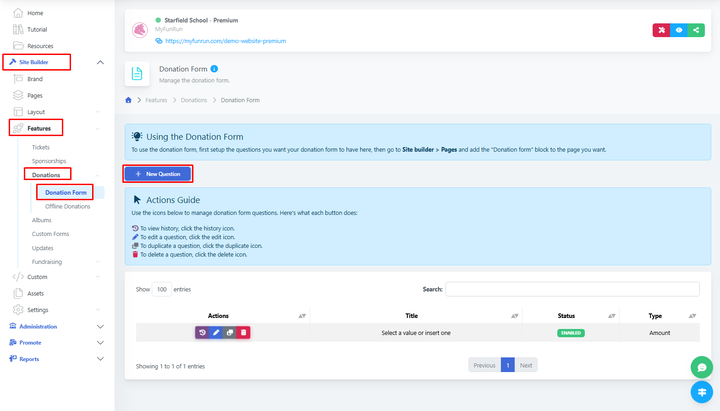
Step 2: Add a New Question
Click '+ New Question' to create a new question for donors.
Step 3: Configure Question Details
Set up your question with the following options:
- Question Type: Select the appropriate field type (text, dropdown, checkbox, etc.)
- Question Text: Write your question clearly
- Required: Decide if this question must be answered
- Help Text: Provide additional context or examples
- Default Value: Set a pre-filled answer if applicable
There are also premade questions that you can use with predefined options.
Common Custom Questions for Donations
Donation Dedication
- Type: Text Area
- Question: "Would you like to dedicate this donation? (Optional)"
- Help Text: "In honor of, in memory of, or in celebration of someone special."
Employer Matching
- Type: Text Input
- Question: "Employer Name (for matching gifts)"
- Help Text: "If your employer matches donations, please provide their name".
Donation Purpose
- Type: Dropdown or Radio Buttons
- Question: "Where would you like your donation to go?"
- Options: General Fund, Scholarship Fund, Equipment, Facilities, Specific Program Name
Communication Preferences
- Type: Checkboxes
- Question: "How can we stay in touch?"
- Options: Email updates, Quarterly newsletter, Annual report, Event invitations
How Did You Hear About Us
- Type: Dropdown
- Question: "How did you hear about this campaign?"
- Options: Social Media, Email, Friend/Family, Website, Event, Other
Step 4: Arrange Question Order
Organize your questions in a logical flow
Use drag-and-drop to reorder questions
Step 5: Configure Question
Decide who sees the answers:
Status - Enabled: The question will be shown to the public
Status - Disabled: The question will be hidden from the public
Required - Yes: The user will be required to answer the question
Required - No: The question will be optional
Step 6: Test Your Donation Form
You can test your donation by creating an offline donation
To create an offline donation, you'll need to go to Reports → E-Commerce → Donations
Click on "Offline Donation" at the top right corner of the page
Complete the form and submit it
Check the report to ensure answers are captured in the system
Viewing Donor Responses
To access custom question responses, go to Reports → E-Commerce → Donations
Click the details button on a specific donation to see the detailed answers from the form
or
Export the donation data to CSV or Excel using the "Download" button at the top right of the report page
Use reporting tools to analyze responses
Filter donors based on their answers
Best Practices
- Keep donation forms simple - too many questions can reduce conversions
- Make most custom questions optional unless truly necessary
- Be clear about how you'll use the information collected
- Respect donor privacy preferences
- Use conditional logic to reduce form clutter
- Test the complete donation experience on mobile devices
- Consider the timing - don't ask too much before they've donated
- Thank donors for providing additional information
Using Donor Data Effectively
- Personalization: Use donor preferences to personalize future communications
- Segmentation: Group donors by interests or giving preferences
- Follow-up: Send targeted follow-ups based on the donation purpose or interests
- Reporting: Analyze donor responses to improve future campaigns
- Matching Gifts: Use employer information to help donors complete matching gift requests
Integration with Thank-You Communications
Custom question responses are automatically included in automated thank-you emails.
Personalize a thank-you message.