

The platform allows you to edit images by rotating, resizing, or trimming.
Pictures in the in the Photo Albums (albums and sliders)
- In your dashboard, navigate to Site Builder → Features → Albums. Click the pencil icon to manage the album, then scroll through the list of pictures. Find the image you want to edit and click the ✂️ scissors icon to make changes.
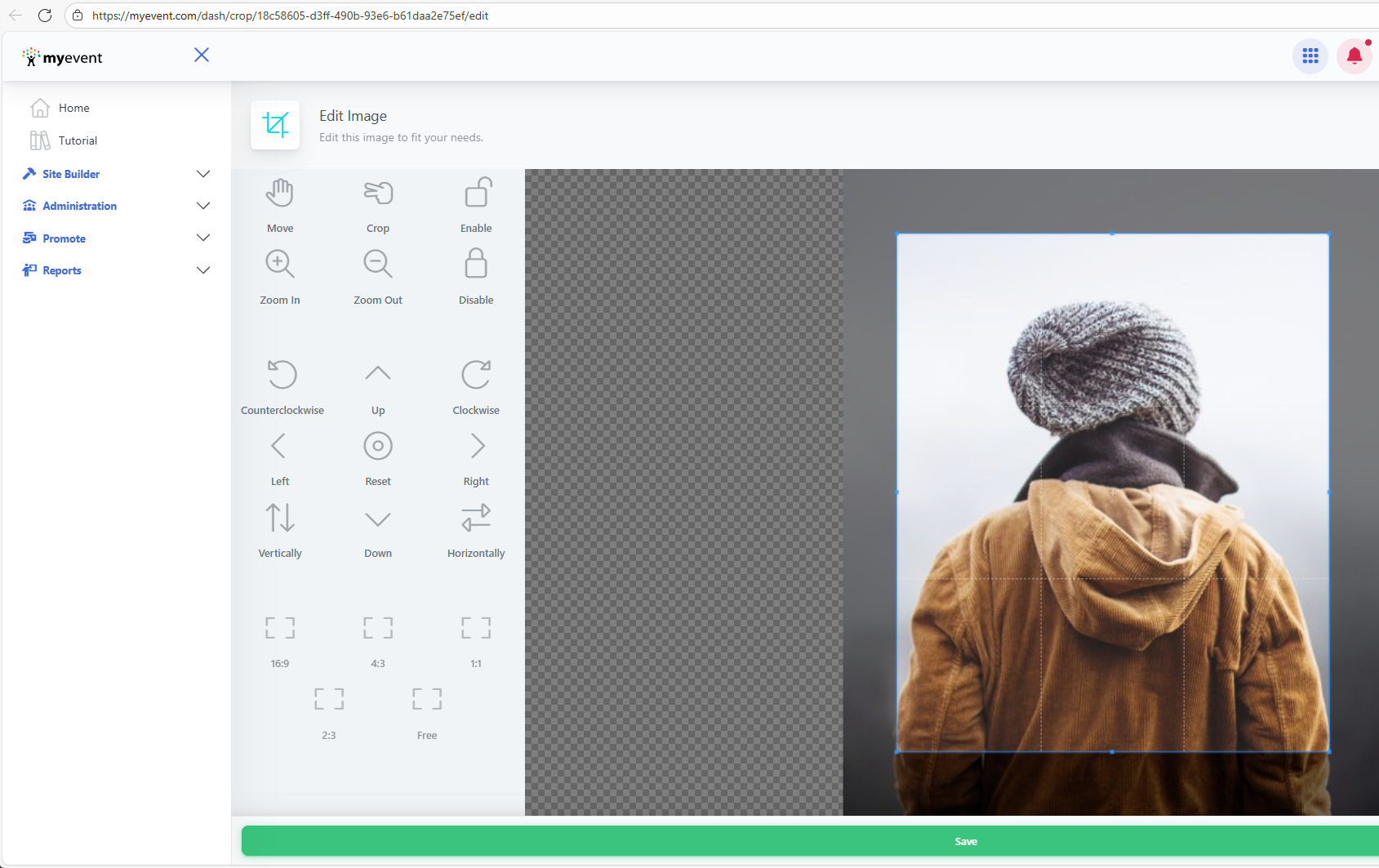
Here you can click and drag if you wish to crop it, or click the clockwise\counterclockwise buttons to rotate it if it was uploaded upside down for example. To save any changes click the Save button below the image.
Pictures within the in features such as Classmates/Family Member/Participant Profiles and Memorials
- In your dashboard, go to Site Builder → Features → Classmates, Members, or Family depending on where the profile is. Click the pencil icon to manage the profile, scroll to the bottom, and click the scissors icon below the profile image to edit it.
Important: These edits will appear on your live website, however if you don't see your changes immediately, please refresh the page. Occasionally some browsers may cache the old version, and a reload of the page may be required to see the change.