

Crea páginas personalizadas para el sitio web de tu evento y ofrece información adicional para mejorar la experiencia de los visitantes.
¿Por qué crear páginas personalizadas?
Las páginas personalizadas te permiten:
-
Compartir información detallada del evento
-
Ofrecer preguntas frecuentes y recursos de ayuda
-
Mostrar información de patrocinadores
- Enlaces a recursos
-
Crear una página de programa o agenda
-
Añadir términos y condiciones
-
Destacar ponentes o artistas
-
Crear una galería de fotos o añadir videos
-
Añadir mapas e indicaciones
- Cualquier página para cualquier propósito
Paso 1: Accede a la gestión de páginas
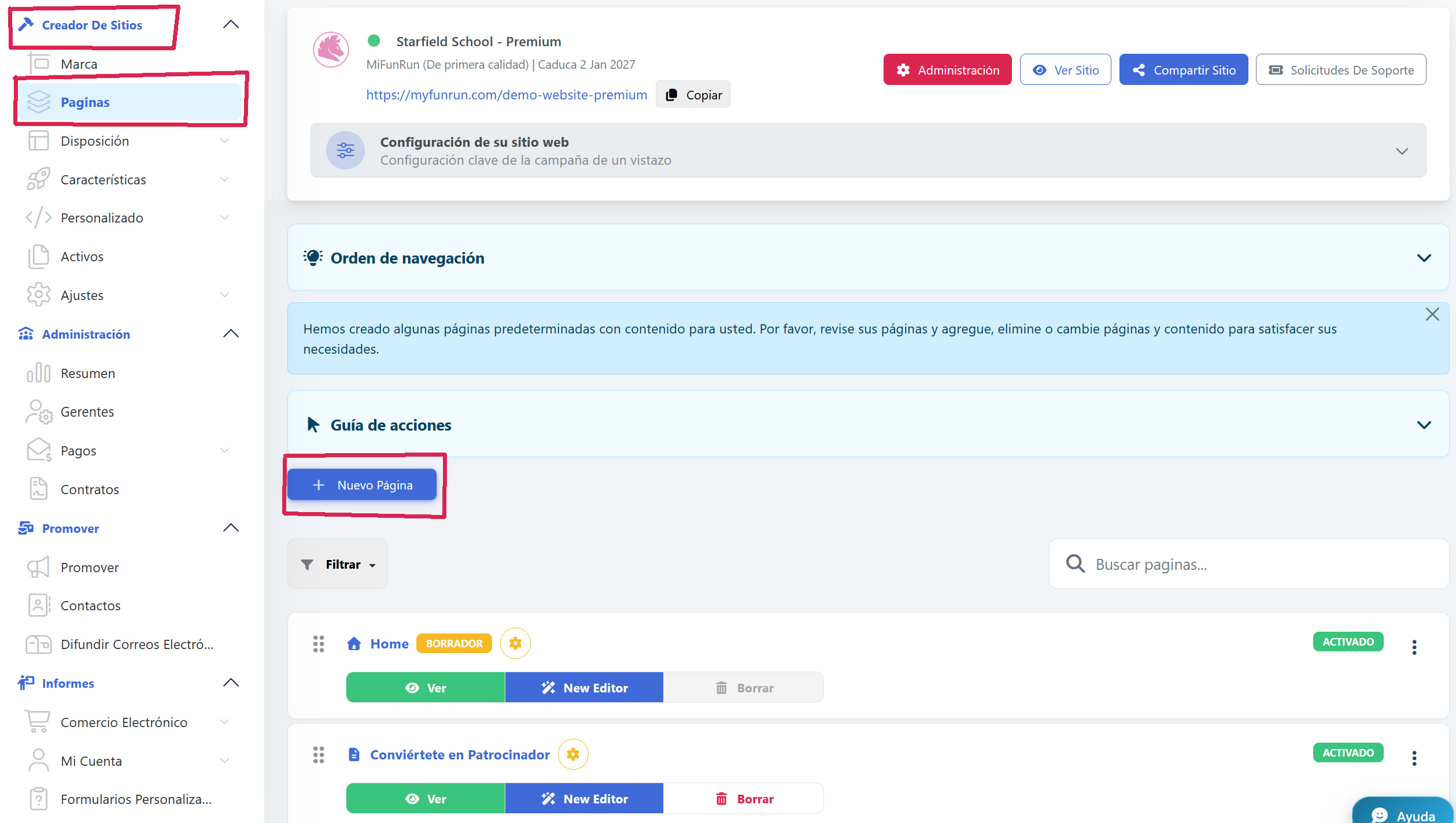
Desde el panel de control de tu evento, ve a Creador de sitios→ Páginas en el menú principal.
Paso 2: Haz clic en 'Nueva Página'
Haz clic en el botón '+ Nueva Página' para empezar a crear tu página.
Paso 3: Configura las propiedades de la página
Configura los ajustes básicos de tu página:
-
Título: El nombre de tu página (p. ej., 'Acerca de', 'Horario', 'Patrocinadores', 'FAQ')
-
URL Slug: La versión de tu nombre de página apta para URL (se genera automáticamente, pero se puede personalizar)
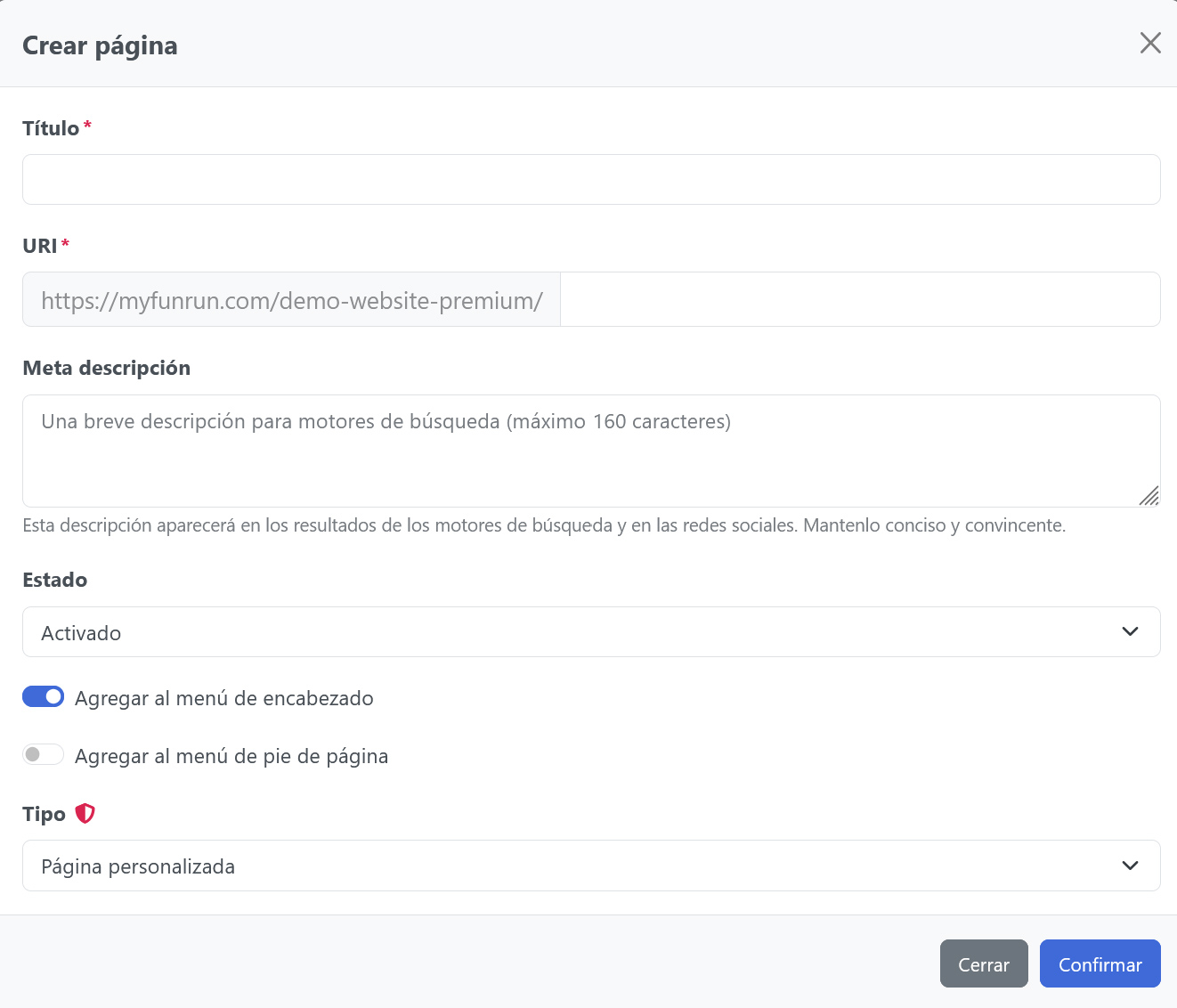
Haz clic para confirmar.
Paso 4: Añade el contenido de la página
Usa el editor de páginas para añadir contenido a tu página. Tienes varias opciones:
-
Editor de texto enriquecido: Usa el editor TintMCE para dar formato al texto, añadir imágenes y crear enlaces
-
Generador de bloques/secciones: Añade secciones y bloques prediseñados (consulta 'How to Add Sections and Blocks to Pages')
Paso 5: Configura los ajustes de la página
Define opciones adicionales para tu página:
-
Visibilidad: Elige quién puede ver esta página (pública, usuarios registrados o contraseña)
-
Ubicación del menú: Añade la página a tu menú de navegación
-
Meta Descripción: Añade una descripción para los motores de búsqueda (SEO)
-
Imagen destacada: Define una imagen de banner o encabezado
Paso 6: Define la navegación
Determina cómo acceden los participantes a tu página:
-
Añade la página al menú de navegación principal
-
Establece el orden del menú arrastrando las páginas en la lista de páginas
-
Crea menús desplegables convirtiendo páginas en subpáginas de otras
-
Añade enlaces en el pie de página si es necesario
Paso 7: Previsualiza tu página
Antes de publicar, usa la función de vista previa para ver cómo aparecerá tu página a los visitantes. Comprueba:
-
Que el contenido se muestra correctamente
-
Que las imágenes se cargan correctamente
-
Que los enlaces funcionan como se espera
-
La compatibilidad con dispositivos móviles
-
Que la navegación funciona correctamente
Gestión de tus páginas
Después de crear páginas, puedes:
-
Editar: Actualizar el contenido en cualquier momento
-
Duplicatar: Crear copias de páginas con una estructura similar
-
Reordenar: Cambiar el orden en que aparecen las páginas en la navegación
-
Archivar: Ocultar páginas sin eliminarlas
-
Suprimir: Eliminar permanentemente las páginas que ya no necesitas
Consejos para páginas
Plantillas de página comunes que quizá quieras crear:
-
Acerca de: Información general del evento, misión e información del organizador
-
Horario: Cronograma del evento, sesiones y actividades
- Patrocinadores: Destaca a los patrocinadores de tu evento con logotipos y descripciones
-
FAQ: Preguntas y respuestas frecuentes
-
Evento: Detalles de la ubicación, mapas e información de estacionamiento
-
Contacto: Formulario de contacto e información de contacto del organizador
-
Términos: Términos y condiciones, política de privacidad, política de reembolsos
Añadir imágenes y medios
Mejora tu página con contenido visual:
-
Haz clic en el icono de imagen para subir fotos
-
Inserta videos de YouTube o Vimeo
-
Añade galerías de fotos o carruseles
-
Incluye descargas PDF o documentos
Mejores prácticas
-
Mantén los títulos de las páginas cortos y descriptivos
-
Usa una navegación clara y fácil de entender
-
Optimiza las imágenes para la web para garantizar una carga rápida
-
Usa encabezados (H2, H3) para estructurar el contenido y facilitar la lectura
-
Mantén la información importante 'above the fold'
-
Incluye una llamada a la acción clara en cada página
-
Prueba todos los enlaces antes de publicar
-
Asegúrate de que el contenido sea apto para móviles
-
Actualiza las páginas con regularidad para mantener la información al día
-
Usa una identidad visual y un estilo coherentes en todas las páginas
Consejos SEO
-
Escribe títulos de página descriptivos (50-60 caracteres)
-
Añade meta descripciones (150-160 caracteres)
-
Usa URL descriptivas (evita slugs genéricos como 'page-1')
-
Incluye palabras clave relevantes de forma natural en tu contenido
-
Añade texto alternativo a todas las imágenes
-
Crea enlaces internos entre páginas relacionadas