

In your Dashboard in the left Column, go to Promote → Send Email* (*Note you must have a template created first, if you have not yet created a template go to Promote - Email Templates and click on the Create Email Template button)
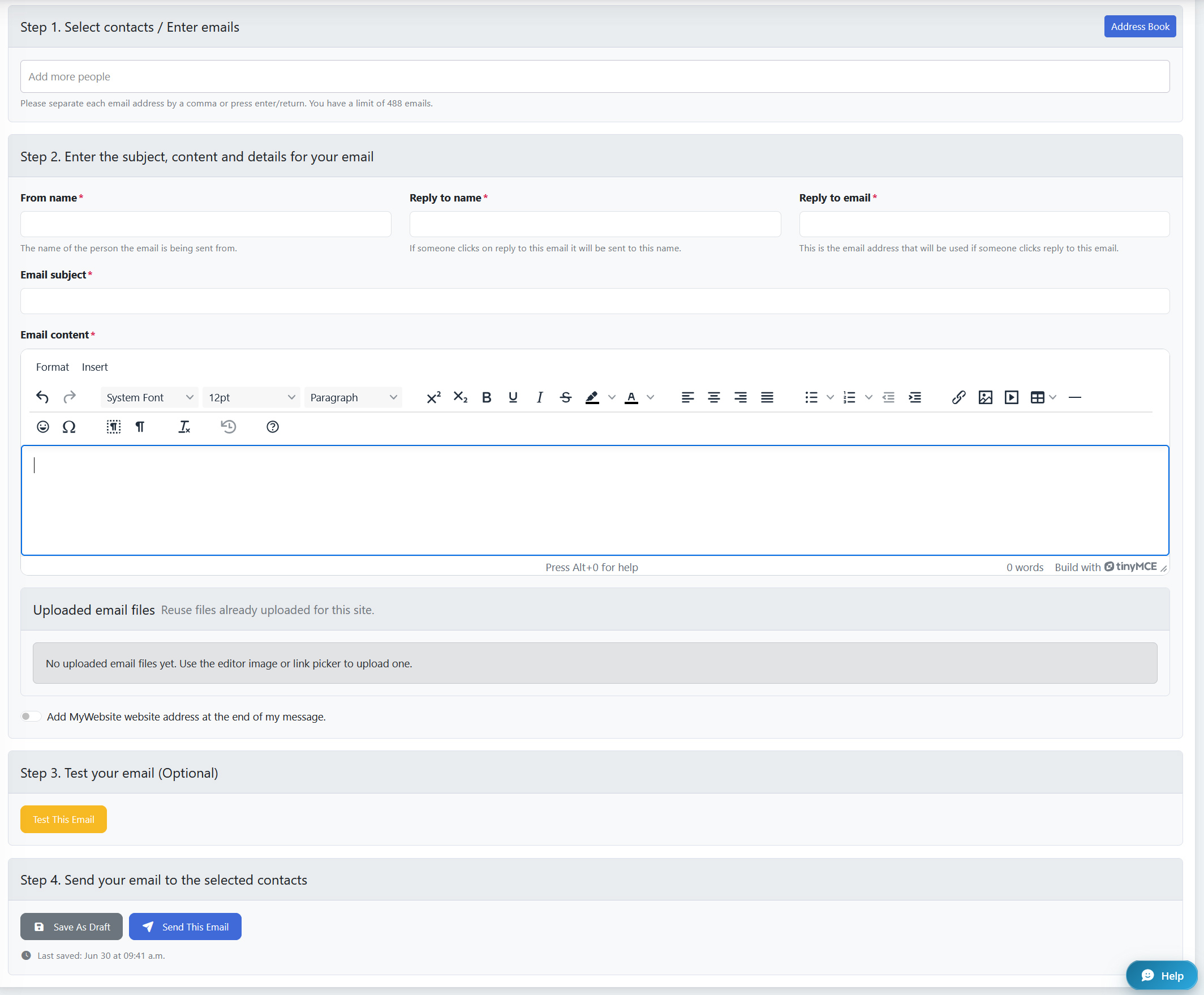
1. Choose your email template and then your audience. You can enter email addresses manually (ideal if you only have a few), or you can add many emails at once from your "Address Book".
Manually:
Enter email addresses manually separated by a comma. You can also manually paste emails copied from a datasheet or a comma-separated list.
From Contacts:
Click the Address Book button→ Select the contacts you want to add to the Broadcast Email, or use the Select all visible contacts button at the bottom to select everyone, then click on Add Contacts.
2. Under Step 2, fill in a "From Name", "Reply to name", and "Reply to email". Usually, this would be your email address, unless you have a dedicated person whom you want to receive inquiries or replies, or if you have created a separate email for that purpose.
3. Enter a subject line, then type your message in the Content box.
4. We highly recommend you toggle the "Add your site name website address at the end of my message" on, so that a clickable link to your website will automatically be included in the email.
5. Once you have completed entering the subject line and composed your message, click the "Test This Email" button (Step 3 - Test Your Email). A test email will be sent to the site owner. Once you have reviewed the message and made any required changes, you're ready to send.
6. Click the "Send This Email" button to send the email to all the contacts you manually entered or selected from your Contacts.
Please note that once the email is scheduled, it can take up to 10 minutes to send to your entire list.
To learn how to cancel a scheduled Broadcast Email before it is sent, visit How to Cancel a Broadcast Email.