

Give your website a personalized look by adding a background image and choosing colors that match your event, organization, or personal style
You can customize your website's background and theme colors from:
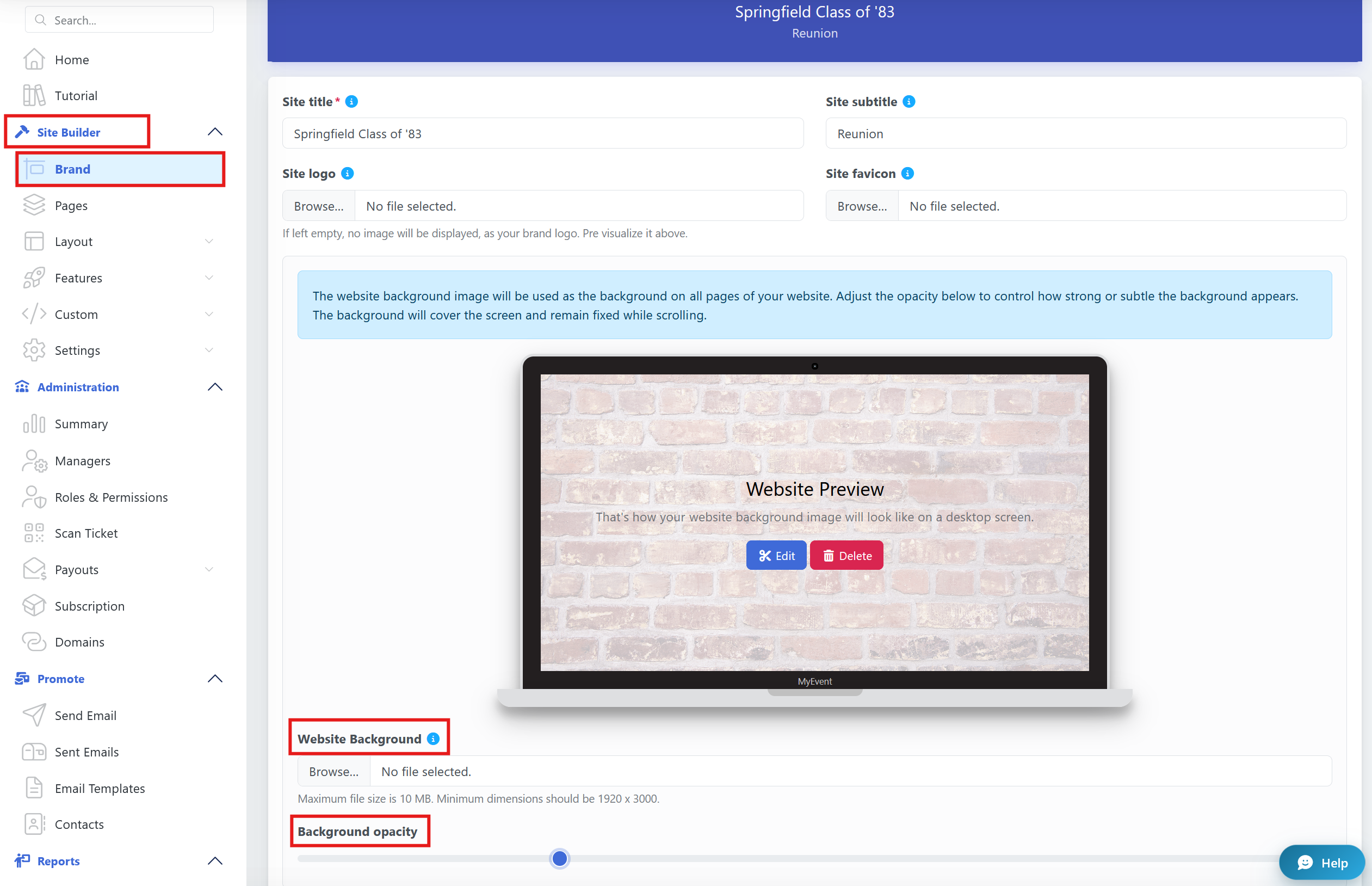
Site Builder → Brand
Add a Website Background
Your website background image is displayed across the pages of your website. You can choose an image that matches the theme of your event, such as a photo, pattern, texture, or other design.
To add a background:
- Go to Site Builder → Brand.
- Find the Website Background section.
- Click Browse and select your image.
- Adjust the Background opacity if needed.
Recommended image size:
- Maximum file size: 10 MB
- Minimum dimensions: 1920 × 3000 pixels
The background is designed to cover the screen and remain fixed while visitors scroll through your website.
Adjust the Background Opacity
The Background opacity slider lets you control how strongly the background image appears on your website.
- Higher opacity: The background image appears more visible and prominent.
- Lower opacity: The background becomes more subtle, allowing the content and other elements on your website to stand out.
If you are using a detailed or colorful image, lowering the opacity can help keep your text and content easy to read.
Choose Your Theme Colors
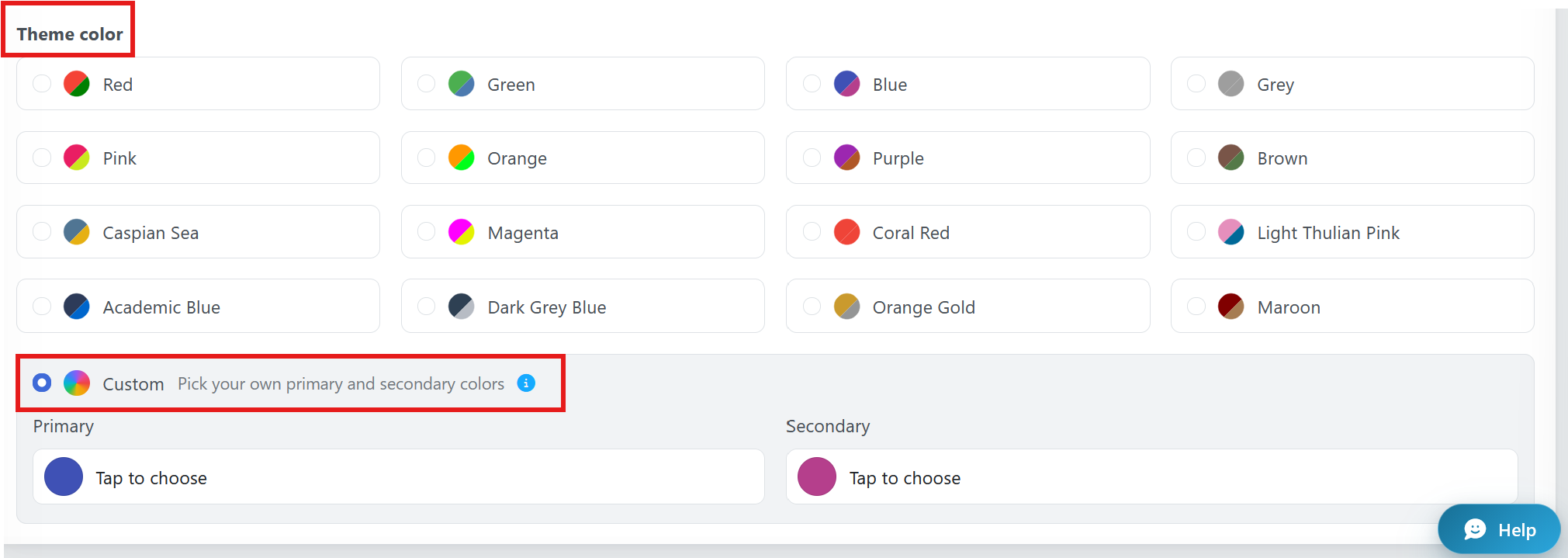
Below the Website Background section, you'll find Theme color options.
Theme colors are used throughout your website to create a consistent look for buttons, links, headings, and other design elements.
You can choose from a selection of preset color combinations, simply select the theme you want to use.
If you want your website to match specific colors, select Custom.
With the Custom option, you can choose your own:
- Primary color
- Secondary color
Click Tap to choose under either color to open the color picker and select the color you want.
This is a great option if you want your website to match your event's colors, school colors, logo, or another specific color scheme.
Tip
For the best results, try to choose a background image and theme colors that complement each other. A subtle background combined with clear, contrasting theme colors can give your website a polished and easy-to-navigate look.